
Converting XML in n8n is easy until the feed changes. Two products work. One product breaks your next node. A SKU loses its zeros. A missing price quietly turns into zero.
This guide builds a small n8n XML to JSON workflow that makes those changes easier to catch. You get a free lab, real screenshots and eight sample cases you can run yourself.
Use n8n’s XML node with XML to JSON mode and a text input field. Choose your array and attribute settings before mapping values. For the catalog example below, keep attributes separate, turn the product field into a list, then Split Out that list. Check missing values before sending records to another app.
Tested: 9 October 2026 in n8n Cloud 2.43.2. Eight synthetic XML cases passed our checks. This is a small data-shape lab, not a live supplier integration or a large-file benchmark.
Download the free XML to JSON lab
The ZIP includes the importable workflow, sample XML cases, the normalization code and setup notes. It needs no credentials and makes no external requests or writes.
Why one XML record can break a working workflow
Our first sample contains one product:
<catalog>
  <product sku="0012">
    <name>Desk lamp</name>
    <price>12.50</price>
  </product>
</catalog>
With the lab’s settings, the parsed product is an object. Add a second product and the product field becomes an array. The XML is valid in both cases. Your downstream mapping still needs to handle both.
// One product: catalog.product is an object
{"catalog":{"product":{"$":{"sku":"0012"},
  "name":"Desk lamp","price":"12.50"}}}

// Multiple products: catalog.product is an array
{"catalog":{"product":[
  {"$":{"sku":"0012"},"name":"Desk lamp","price":"12.50"},
  {"$":{"sku":"0013"},"name":"Mug","price":"0"}
]}}
These are the structures used by our one-product and two-product fixtures. The dollar-sign field contains attributes because we explicitly turned Merge Attributes off.
A practical rule: decide which fields must always be lists, which must be text, and which may be missing. Do that before connecting the final write node.
Build the n8n XML to JSON workflow
1. Put the XML in a text field
For a quick test, use an Edit Fields node in JSON Output mode with this object:
{
  "data": "<catalog><product sku=\"0012\"><name>Desk lamp</name><price>12.50</price></product></catalog>"
}
The downloadable lab uses a Code node called XML fixtures to supply eight examples instead. That lets the same conversion run against different shapes.
For an API feed, use HTTP Request → Options → Response → Response Format: Text. Put the response in data, then check that field in the output before adding XML. If you include response headers and status, inspect the resulting body location rather than assuming the field stayed the same. See the official HTTP Request reference.
For a downloaded binary file, use Extract from File with Extract From Text File. Point it at the actual binary property, set the destination text field to data and check the file’s encoding. A binary attachment and a JSON text field are different inputs.
2. Set the XML options explicitly
Add an XML node and use the following settings. These are our lab choices, not a claim that every feed needs them.
| Setting | Lab value | What to check |
|---|---|---|
| Mode | XML to JSON | Input is XML text. |
| Property Name | data | This exact input field exists. |
| Explicit Root | On | Mapping starts at catalog. |
| Explicit Array | Off | We normalize the product list ourselves. |
| Merge Attributes | Off | Attribute SKU stays separate from a child named sku. |
| Ignore Attributes | Off | Product IDs remain available. |
| Attribute / Character Key | $ / _ | Code expects these keys. |
| Trim | On | Outer text spaces are removed. |
The XML node documentation explains the options. Its source implementation also shows why setting Merge Attributes explicitly matters: the default merges them.
3. Normalize only the list you need
In our example, products must always be an array. A product’s name and price can stay simple text. Add a Code node in Run Once for All Items mode.
The core shape fix is short:
const raw = $input.first().json.catalog?.product;
const products = raw == null ? []
  : Array.isArray(raw) ? raw : [raw];
This snippet illustrates the list conversion for the first incoming feed item; it is not the complete node. Use Normalize catalog from the download for the runnable version. It also checks the root, validates product objects and maps every incoming feed item.
The full node builds these fields for each product:
- sku: the sku attribute, kept as text.
- name: trimmed child text.
- priceText: the original price text, kept for review.
- price: a number only after our format check passes.
- status and errors: ready or review, with a reason.
Our price rule accepts non-negative decimals with up to two decimal places. It accepts 0. It flags a missing price or 12,50 for review. If your supplier uses comma decimals or another currency format, write a specific conversion rule instead of guessing.
Keep currency amounts as decimal strings or integer minor units when your destination needs exact accounting values. The lab’s numeric price is a mapping example, not a money calculation engine.
4. Split the products into n8n items
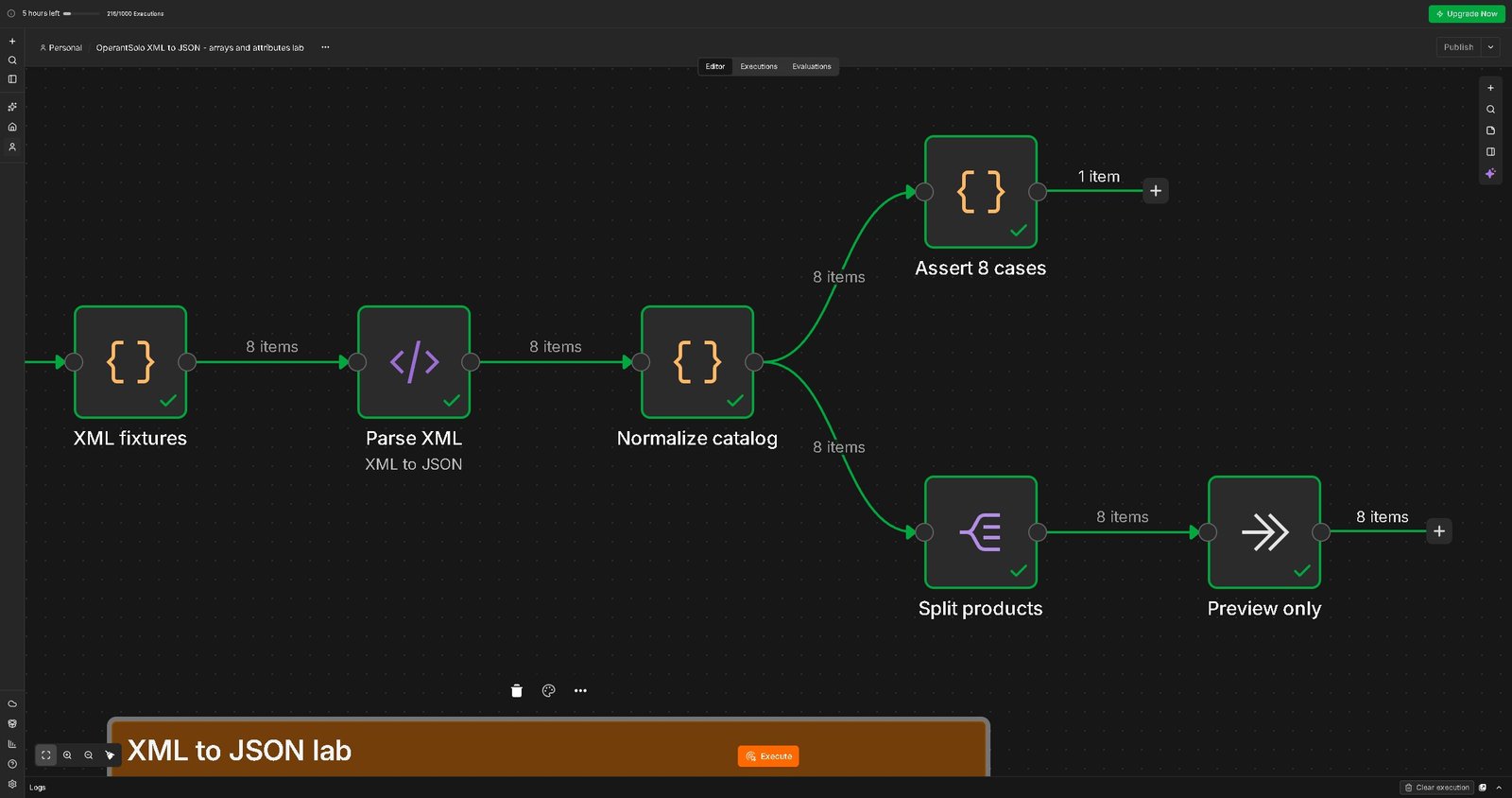
Add Split Out after Normalize catalog. Set Field to Split Out to products and Destination Field Name to product. In the lab, Selected Other Fields keeps reviewCount.
Now each item has its own product object. A later mapping can read:
{{ $json.product.sku }}
{{ $json.product.name }}
{{ $json.product.price }}
{{ $json.product.status }}
Our empty catalog produces no product items. Keep feed-level monitoring on a separate branch before Split Out so you can still record a zero-product run. The Split Out reference explains how to carry other fields into the new items.
5. Keep review rows away from writes
Before adding Google Sheets, a database or a CRM, place an IF or Filter node after Split Out. Allow a write only when product.status equals ready. Send review rows to a separate review path.
A ready row still needs your destination’s rules. Confirm its unique product key, decide how updates work and check the response after a write. Parsing XML does not prevent duplicate inserts.
Do not interpret a missing or empty feed as an instruction to delete existing products. Check the supplier’s feed contract first. If the API returns 429 while fetching data, use the separate n8n Retry-After guide; changing XML settings will not fix a rate limit.
What our eight XML test cases showed
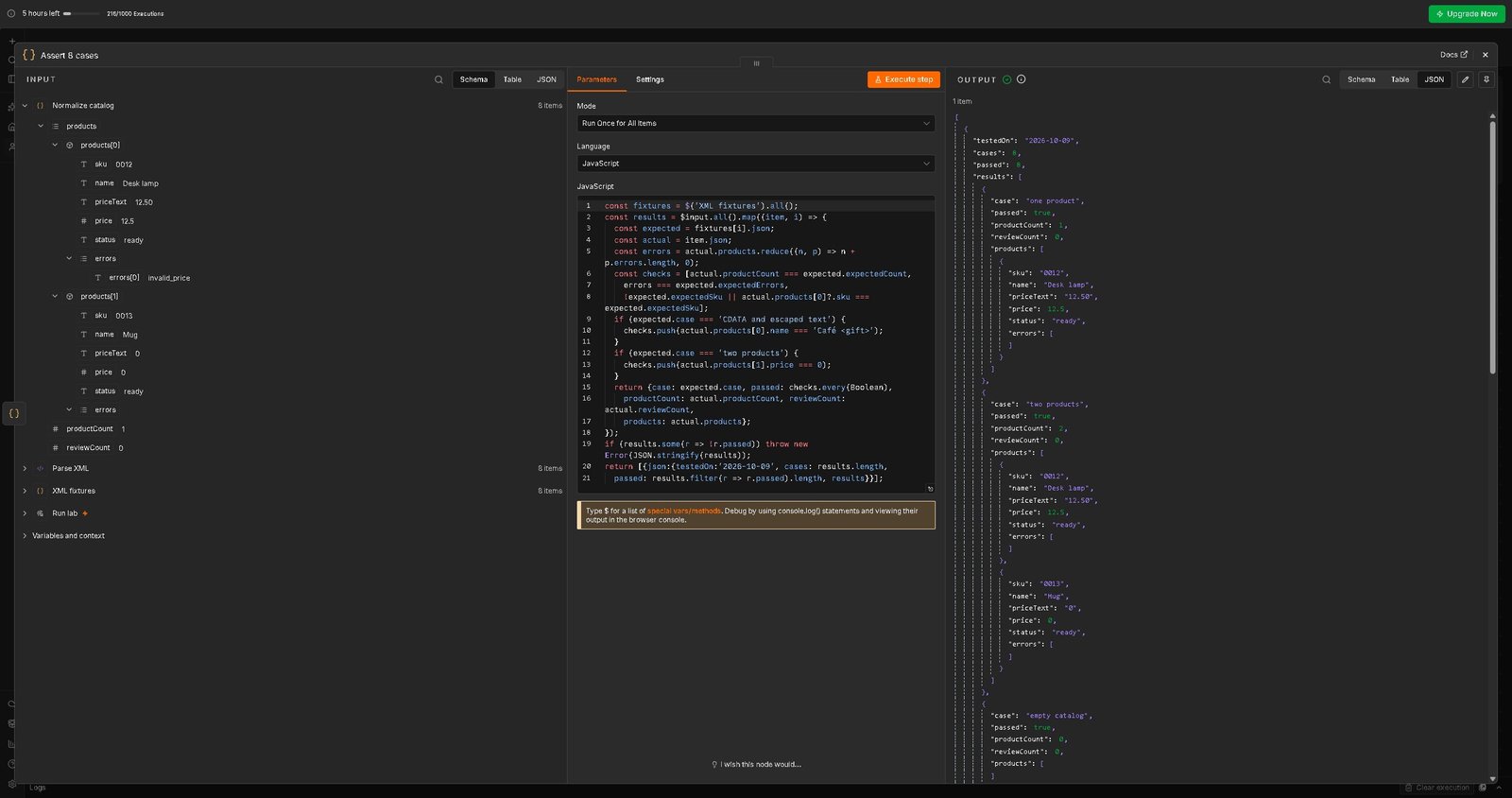
We ran the importable lab in n8n Cloud. The assertion node reported 8 cases, 8 passed. The preview branch emitted eight product items across the fixtures. Two were marked review and six were ready. Review fixtures count as passing tests because the expected result was to catch bad data.
| Sample case | Product items | Observed result |
|---|---|---|
| One product | 1 | One ready row; SKU 0012 preserved. |
| Two products | 2 | Two ready rows; a zero price stays valid. |
| Empty catalog | 0 | Empty products array; no product writes to perform. |
| Attribute and child both named sku | 1 | Attribute A-01 selected; child label does not replace it. |
| Leading zeros | 1 | SKU 000007 stays text. |
| CDATA and escaped text | 1 | Name Café <gift> preserved as text. |
| Missing price | 1 | Review; price is null. |
| Comma decimal price | 1 | Review; invalid_price under our rule. |
Fix common n8n XML to JSON problems
“Item has no JSON property called data”
Open the XML node’s input and find the field containing the XML string. Match Property Name to that field. If the source is a binary file, extract its text first. Do not rename fields blindly when the real problem is a nested HTTP response body.
The Split Out node sees an object instead of a list
Test a feed with just one record. Our lab turns that record into a one-element array before Split Out. Check that you are splitting the new products field, not the original catalog.product field.
Every child field becomes an array
Check Explicit Array. Turning it on is a valid alternative when you want all child elements to have list shapes. It also changes the mapping for single name and price fields. Our normalizer expects it off; do not turn it on without updating and retesting the code.
An attribute or text value seems missing
Check Merge Attributes, Ignore Attributes and the configured keys. With our settings, an attribute lives under $. Text with its own attributes can live under _. The full normalizer reads that text shape, but it does not support repeated name or price elements.
The feed uses namespaces or a different root
The download expects catalog/product. A SOAP envelope, RSS feed or namespaced supplier document has a different path. Inspect that output and adapt the mapping. Do not remove prefixes or flatten everything before checking whether two fields would collide.
The XML itself is invalid
Inspect the source for broken closing tags and unescaped characters. Handle a parse failure separately from a valid record with a missing price. For failed production executions, see our n8n error workflow setup. This lab’s eight fixtures are well-formed XML; it does not claim a malformed-input test.
Who should use this example?
Use it if you are learning to turn a small XML product feed into predictable JSON before mapping records to another app. It is also a useful test pattern when a feed works with several records but fails with one.
Choose a different approach for huge files that need streaming, arbitrary document conversion, mixed-content publishing XML or strict XML schema validation. We did not load-test those cases. Start with the supplier’s schema and test realistic sizes in your own environment.
If your next task is CSV rather than XML, try the n8n CSV to JSON tool. For help reading nested values, use our tested n8n expression examples.
Frequently asked questions
Can n8n convert XML to JSON without a Code node?
Yes. The XML node performs the conversion. This lab adds Code for a specific product-list contract and validation; you can use Edit Fields and Split Out when your parsed shape already fits the next step.
Should I always turn Explicit Array on?
Choose it to match the shape you want downstream. It makes child elements arrays, including fields you may expect to be text. Our example keeps it off and normalizes only the product list.
Does converting XML to JSON make prices numbers?
In our fixtures, parsed price values were strings. We validated the text before converting it, while keeping the original priceText. IDs such as 000007 stayed strings.
Can I connect the downloaded workflow directly to my store?
Use a copy and replace the fixture source first. Adapt it to your real schema, remove the fixture assertion branch, filter ready rows and test your store’s update rules. The download contains no store connection or external write node.
Get the workflow and sample cases
Built by Sajjad Hasan for OperantSolo. The sample data is fictional. Node options were checked against n8n’s official documentation; screenshots and test counts come from the run described above.