
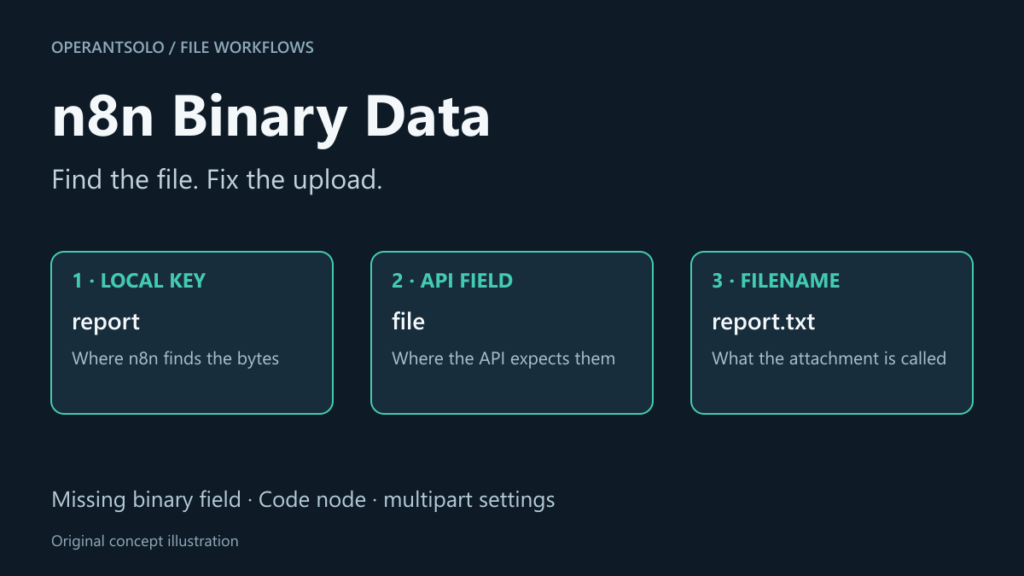
n8n binary data problems often start with a small mismatch: your file lives under report, but the next node looks for data. The file may still exist. The node is looking in the wrong place.
This guide shows how to find the file, keep it through a Code node, and set up an upload. It includes a small learning workflow with a real byte check, plus seven fixes for missing files and rejected uploads.
Quick answer: how do you fix n8n binary data errors?
Open the node immediately before the failure and check its Binary output. Copy the file’s binary key into the next node’s Input Data Field Name. If a Code node returns new items, keep their binary property. For uploads, match the API’s body format and form field name, then check the filename separately.
What is n8n binary data?
n8n binary data is the file data an item carries alongside its JSON fields. JSON can hold a customer ID or a status. Binary data can hold the related PDF, image, or text file. A URL in JSON is a link to a file; it does not by itself attach that file to the item.
The official file-handling overview links to the nodes that create, read, and transform files. Start with the item entering the failing node, rather than the file visible several steps earlier.
The binary key, upload field, and filename are different
In our example, report is the local binary key, file is a hypothetical API’s upload field, and operantsolo-report.txt is the filename. Only the receiving API can tell you which upload field it expects.
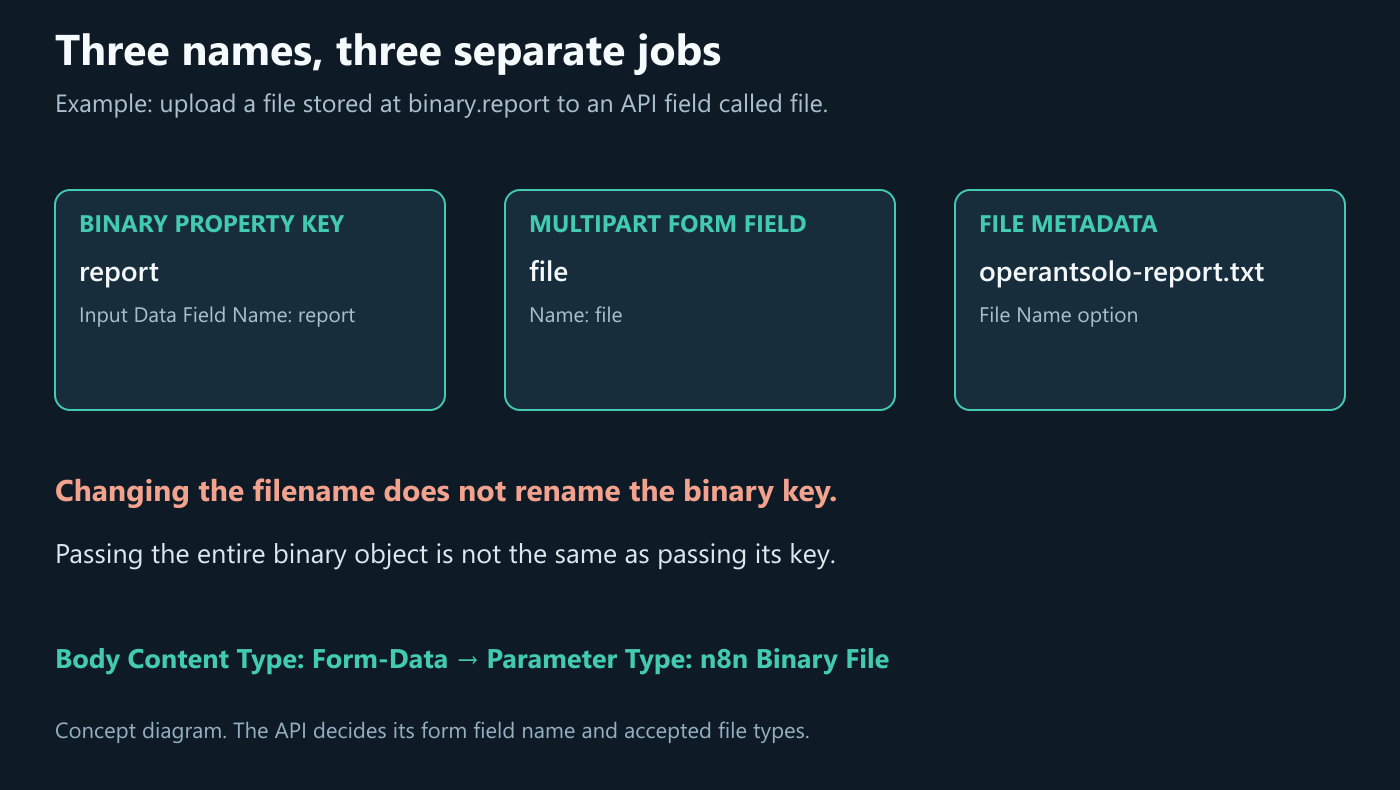
| Name | Example | Where you set or read it | What it controls |
|---|---|---|---|
| Binary property key | report | Binary tab; Input Data Field Name | Which local file the next node reads |
| Multipart form field | file | HTTP Request → Body Parameters → Name | Which form field the receiving API reads |
| Filename | operantsolo-report.txt | Convert to File → Options → File Name | The attachment’s name |
| MIME type | text/plain | Binary metadata | The declared content type |
| Body format | Form-Data | HTTP Request → Body Content Type | Whether the request contains a multipart envelope |
This is a naming reference, not a universal upload contract. Your API may expect document, attachment, or another form field instead of file.
Build a small n8n binary data workflow
The learning workflow creates one text file, edits JSON while keeping the file, then compares the file’s actual bytes with the expected text. It needs a working n8n instance and JavaScript Code nodes. It uses no credentials or external upload service.
Download the free n8n binary-data learning lab (ZIP, about 3 KB). It includes the importable workflow, fixture, test instructions and an MIT license for our original code. Import it into a new workflow and run it manually before connecting your own tools.
1. Add a Manual Trigger and sample text
Connect Manual Trigger to a Code node called Sample text. Set Mode to Run Once for All Items, Language to JavaScript, and enter:
return [{
  json: {
    text: 'OperantSolo binary lab\nrecord_id: B001\nstatus: ready\n'
  }
}];
This is one item containing a string. It is not a binary file yet. The line breaks matter because the final check compares the whole text, including the last newline.
2. Create the file with Convert to File
Add Convert to File, name it Build report file, and use these settings:
| Setting | Value |
|---|---|
| Operation | Convert to Text File |
| Text Input Field | text |
| Put Output File in Field | report |
| Options → File Name | operantsolo-report.txt |
| Options → Encoding | utf8 |
Run this step. The Binary output should contain report with a text file. The Convert to File documentation explains the available conversion operations.
In our run, this conversion produced an empty JSON object and a binary file. Do not assume every field from the source JSON remains after a conversion. Check the output before mapping later fields.
3. Keep n8n binary data in a Code node
Add a Code node called Keep file while editing JSON. Use Run Once for All Items and JavaScript:
return $input.all().map((item, index) => ({
  json: { ...item.json, checked_by: 'OperantSolo lab' },
  binary: item.binary,
  pairedItem: { item: index },
}));
This example keeps a one-to-one relationship between incoming and outgoing items. The JSON gets a small extra field. The binary property goes forward too. If you merge, split, or reorder items, review item linking separately; this short mapping is not a universal solution for those shapes.
For more field-mapping examples, see our n8n expressions guide.
4. Verify the actual file bytes
Add a Code node called Verify file bytes. The downloadable workflow includes the full checker. Its key operation is:
const bytes = await this.helpers.getBinaryDataBuffer(0, 'report');
return [{json: {
  byte_length: bytes.length,
  content: bytes.toString('utf8'),
}}];
That short snippet reads only input item 0 and returns a JSON summary. It intentionally does not keep the file; use the full checker in the download when you want it passed forward. Our full checker reads each input item, verifies the text, and carries its binary property into the output.
Use the helper to read bytes rather than assuming a nested storage value is an inline base64 string. n8n documents getBinaryDataBuffer for JavaScript and notes that the helper is not supported in Python.
What our n8n binary data tests showed
OperantSolo ran this five-node workflow manually in n8n Cloud on 17 October 2026. The fixture contained one fictional record, used UTF-8 with LF line breaks, and ended with a newline. We read the output in the editor after each run. No HTTP upload or external service was part of these tests.
| Manual case | Observed binary keys | Checker passed | Observed result |
|---|---|---|---|
| Baseline: carry binary.report forward | report | true | 53 bytes; exact text matched |
| Return JSON only | none | false | missing_binary_key |
| Rename report to attachment; checker still reads report | attachment | false | File exists under a different key |
| Change checker to attachment | attachment | true | Same 53 bytes; exact text matched |
| Restore original report configuration | report | true | Passing baseline restored |
The missing-key label in this table comes from our checker. It is not a captured HTTP Request error. For the renamed-key case, matching the consumer to attachment recovered the same content without recreating the file.
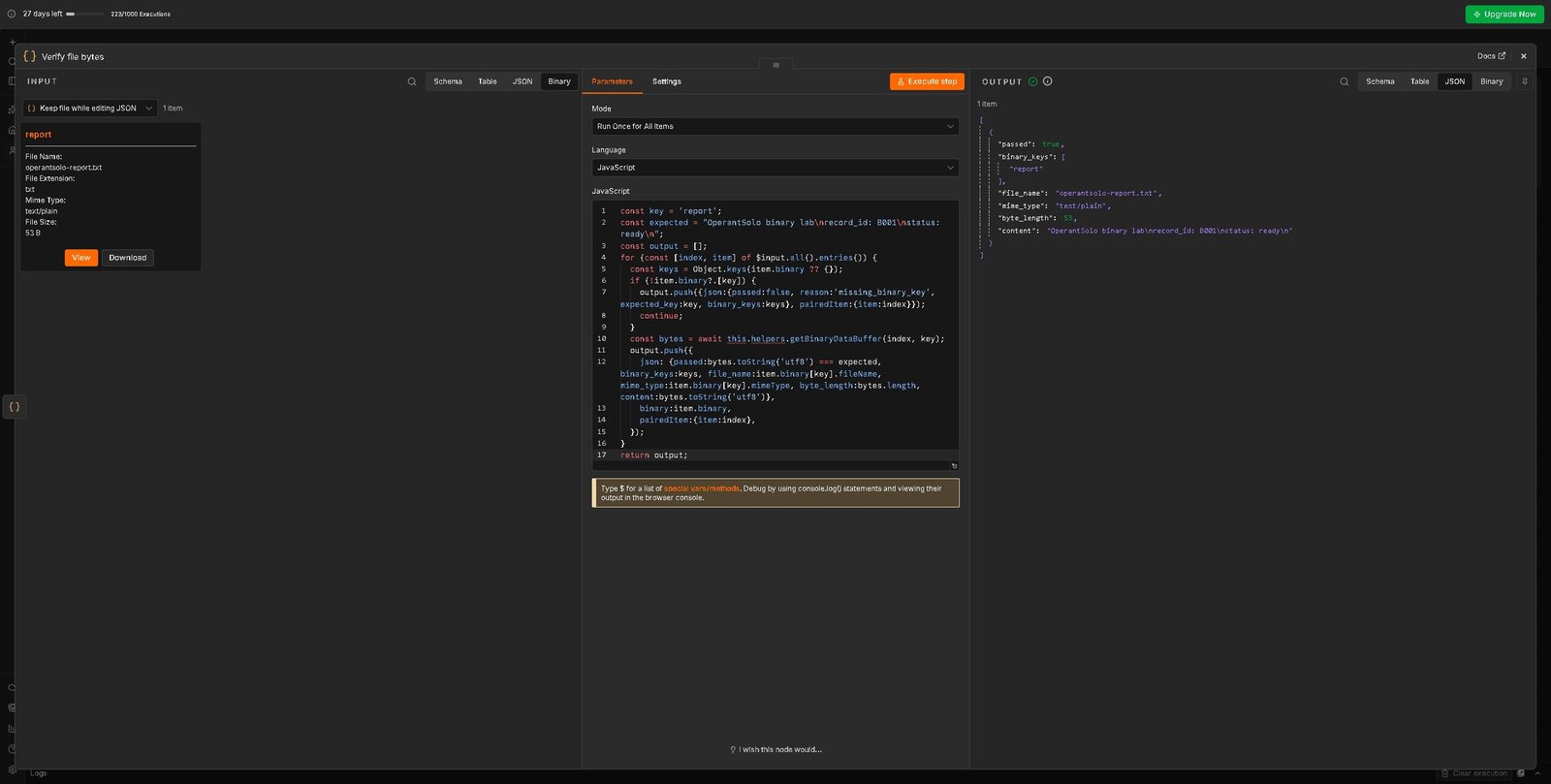
The useful distinction is between an execution that finishes and a file that survives. Our checker can return passed: false as normal JSON. A green workflow result alone does not mean an attachment is ready for an upload.
7 fixes for missing files and upload errors
1. “The item has no binary field ‘data’”
Check whether the current item has a file under another key, such as report or attachment_0. Enter that exact key in the consuming node’s binary field setting. In our learning workflow the correct value is report, not data.
If there are no binary keys, go back one node at a time. Find the first output where the file disappears. Changing the final node’s field name cannot bring back a file that an earlier step removed.
2. n8n binary data missing after a Code node
Look at the object your code returns. Returning only { json: ... } creates an output without a binary property. Our dropped-file test reproduced this: JSON continued, but the checker found no binary keys.
For a one-to-one transform, keep binary: item.binary as shown in step 3. Then rerun from the file-producing node so you inspect fresh data.
3. The error mentions “[object Object]”
A field-name setting needs a key such as report. Passing the whole $binary.report object is a different value. Start with the literal key when the producer always uses the same name.
If you use an expression to choose a key, inspect its evaluated value. A simple string is easier to debug than a full metadata object in a field that expects a name.
4. There is a file URL but no Binary output
A download URL, filename, and file ID are metadata. They do not prove the current item carries file bytes. If your workflow starts with a URL, configure an HTTP Request download and use Response Format: File, then set Put Output in Field to a clear key such as report.
Inspect the returned file before sending it elsewhere. A download can return an error document instead of the PDF you expected. Confirm the response and content in a controlled test.
5. The upload expects multipart but receives a whole file body
These are two different modes. Choose the mode specified by the receiving API:
| HTTP Request control | Multipart upload | Whole file as request body |
|---|---|---|
| Send Body | On | On |
| Body Content Type | Form-Data | n8n Binary File |
| Body Parameter Type | n8n Binary File | Not applicable |
| Name | API’s form field, for example file | Not applicable |
| Input Data Field Name | report | report |
These are documented settings, not a claim that our lab uploaded to a real API. See the HTTP Request body settings for both formats.
6. The server receives the wrong filename
Set File Name before the upload. Changing the multipart Name field changes the form field, not the attachment’s filename. Check the binary metadata and the API’s accepted type requirements too.
The official upload troubleshooting guide covers filename problems and multipart-related 415 errors. A 400 or 415 response needs the receiving API’s error details; it does not always mean the local file is missing.
7. Item 0 works but a later item fails
Inspect the exact item named in the error. One item may have a file while the next contains only JSON. Do not copy the first attachment onto every item unless that is the intended result.
Start with two distinct test files and confirm which record each belongs to. When using Loop Over Items, check the file and record ID together inside each batch.
File size, storage, and production limits
This lab uses a 53-byte text file. It does not establish a safe maximum size for PDFs, images, or large exports. Test realistic files and concurrent runs before relying on the workflow in production.
On self-hosted n8n, storage mode affects how binary data is kept. The official binary storage guide discusses memory, filesystem storage, queue-mode constraints, and pruning. Use the instructions for your installed version and deployment rather than changing a storage setting to fix a misspelled key.
Cloud plan limits and the destination API’s size limits are separate constraints. Check both before paying for a larger plan. This sample needs no paid upload API, but it does not bypass your n8n plan or retention settings.
For a production upload, keep a record ID with each file, verify the returned file ID or storage key, and confirm the uploaded content. Keep logs small when files contain private information. For retry handling, see our n8n rate-limit guide.
Who it is for
This guide is for n8n users who can see a file in one node but cannot use it in the next. It also fits small report, document, and attachment workflows where you need a clear way to check the file before an upload.
Who should avoid it
Do not use this small learning lab as a large-file architecture, a malware scanner, or proof of delivery to an external API. It also does not cover extracting text from scanned PDFs or deciding whether a document is safe to process.
Frequently asked questions
How do I access n8n binary data in a Code node?
For JavaScript, use this.helpers.getBinaryDataBuffer(itemIndex, binaryKey) to read actual bytes. Use the index of the current input item and the key shown in its Binary output, such as report.
How do I convert JSON to a binary file in n8n?
Use Convert to File and choose the operation for the format you need. Our example uses Convert to Text File with a text source field; use a JSON conversion operation when you want a JSON document instead.
Why does n8n say the binary field is missing when I can see the file?
You may be viewing another node, another input item, or old execution data. Inspect the current input of the failing node and match its binary key exactly; also check whether an intervening Code node returned only JSON.
Can I upload binary data without converting it to base64?
Yes, HTTP Request can read an existing binary file for either a multipart part or the whole request body. Choose the format required by the receiving API; a JSON base64 field is a separate API contract.
Get the next workflow note
Want more small n8n examples with clear failure checks? Join the OperantSolo newsletter for new workflow notes. Start with the learning file, verify its output, then adapt one setting at a time.
Editorial note: This guide contains no affiliate links. If a future version adds a commercial recommendation, any affiliate link will be labelled next to that recommendation.
Stuck on your own n8n workflow?
Send me the failing workflow and I will send back the fix in writing. Quick fix $29, full fix $79 with a tested corrected version. You pay only after I confirm I can help.