
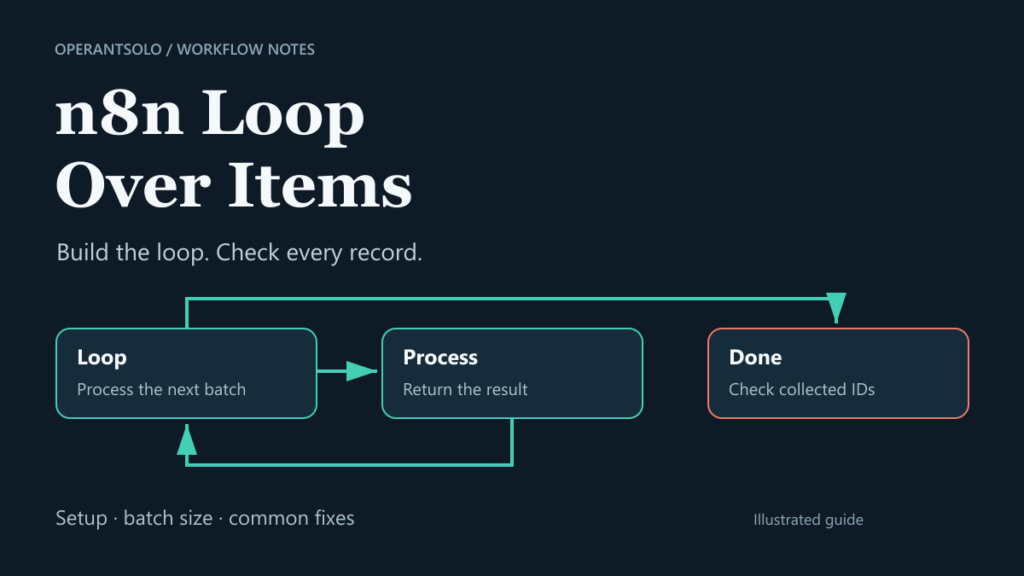
n8n Loop Over Items sends incoming items through a workflow in batches. Set Batch Size to 1 for one-at-a-time processing, connect the processing path back to the loop node, and use Done for the collected results. Many n8n nodes already handle multiple items, so add an explicit loop only when the workflow needs it.
You start with five records. One gets updated. The workflow shows green. Where did the other four go?
Before changing the batch size, check what reached the loop, which output you connected, and what came back. Those three checks explain more than the success badge alone.
This guide uses five fictional records. Each has a stable ID, and the final step checks for missing, repeated and unexpected IDs. You can reuse that check when you replace the sample processing step with your own work.
Lab note: We checked this n8n Loop Over Items example in n8n Cloud 2.44.3 on 17 October 2026. The download includes the fictional inputs, checker and observed summaries. No customer data, paid API calls or published triggers were used.
When do you need n8n Loop Over Items?
Loop Over Items controls how many existing items enter the next part of a workflow on each pass. It is also known as Split in Batches in older tutorials and workflow files.
First, try the direct connection. If your source returns five separate items and the next node supports them, it can often process all five without an explicit loop. n8n’s looping guide explains this normal item processing and the exceptions.
Use an explicit loop when you need a small group to finish a series of steps before starting the next group. A batch size of 1 makes it easier to trace one record through several nodes. Larger batches can help when a service accepts grouped work.
Two limits matter here. A batch is not automatically one bulk API request. Also, Batch Size does not add a delay. If the API needs a pause between requests, configure that separately.
Check the input before changing the batch size
An n8n item is one record in the input list. A JSON array inside that record is still part of one item until you split it.
These two inputs look similar, but the loop sees different item counts:
| Input shape | What the loop receives | What to do |
|---|---|---|
| Five separate items, each with a record_id | Five items | Batch them directly |
| One item with a records array containing five objects | One item | Use Split Out on records first |
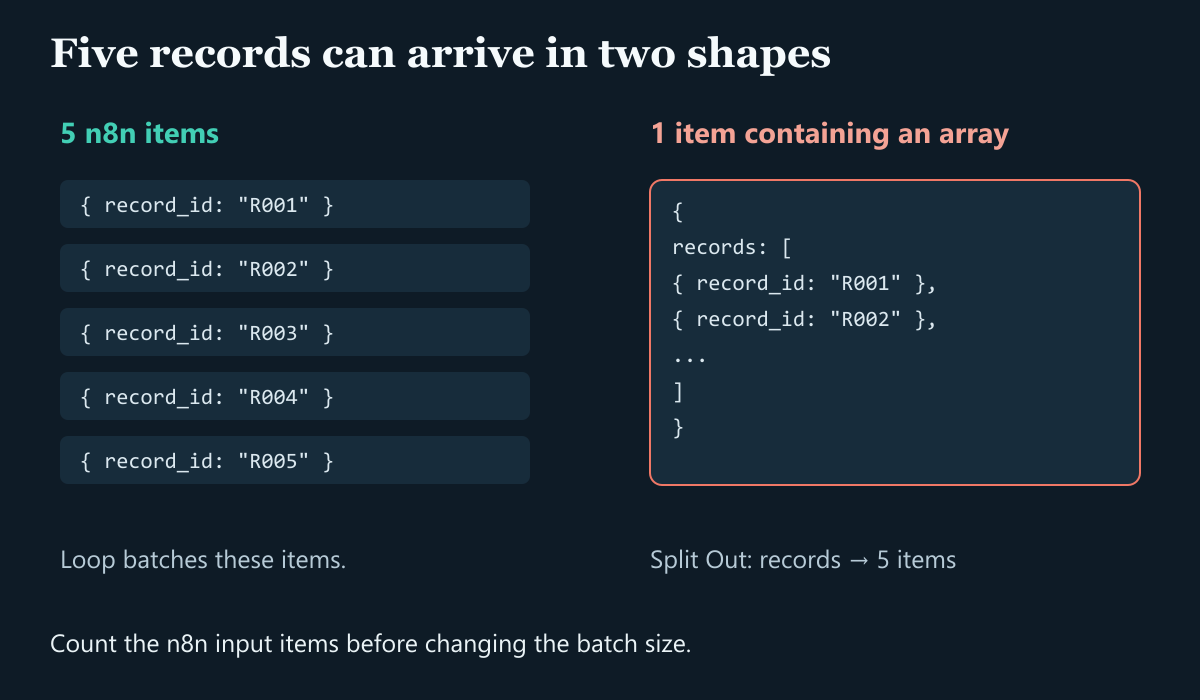
For example, this is one item containing a list:
{
  "records": [
    { "record_id": "R001" },
    { "record_id": "R002" }
  ]
}
Add Split Out, set Field to Split Out to records, and inspect the output. You should now see two items for this small example. The Split Out documentation describes how to keep other fields, too.
Do this check before adding another loop. A batch size of 1 cannot turn a nested list into separate n8n items by itself.
Build a simple n8n Loop Over Items workflow
This example marks each sample record as processed, then checks the returned IDs. It does not send emails, update a CRM or call a paid API.
You need a new workflow and three Code nodes, plus Manual Trigger and Loop Over Items. The Code nodes use JavaScript in Run Once for All Items mode. Keep the names below if you copy the checker, because it refers to Sample records by name.
1. Create the sample records
Add Manual Trigger, then a Code node named Sample records. Paste this code:
return [
  { record_id: 'R001', name: 'Ada', status: 'new' },
  { record_id: 'R002', name: 'Ben', status: 'new' },
  { record_id: 'R003', name: 'Cara', status: 'new' },
  { record_id: 'R004', name: 'Dev', status: 'new' },
  { record_id: 'R005', name: 'Eva', status: 'new' }
].map(json => ({ json }));
Run this step and check that it returns five items. The IDs give us a way to check which records survive the full path.
2. Set the n8n Loop Over Items batch size
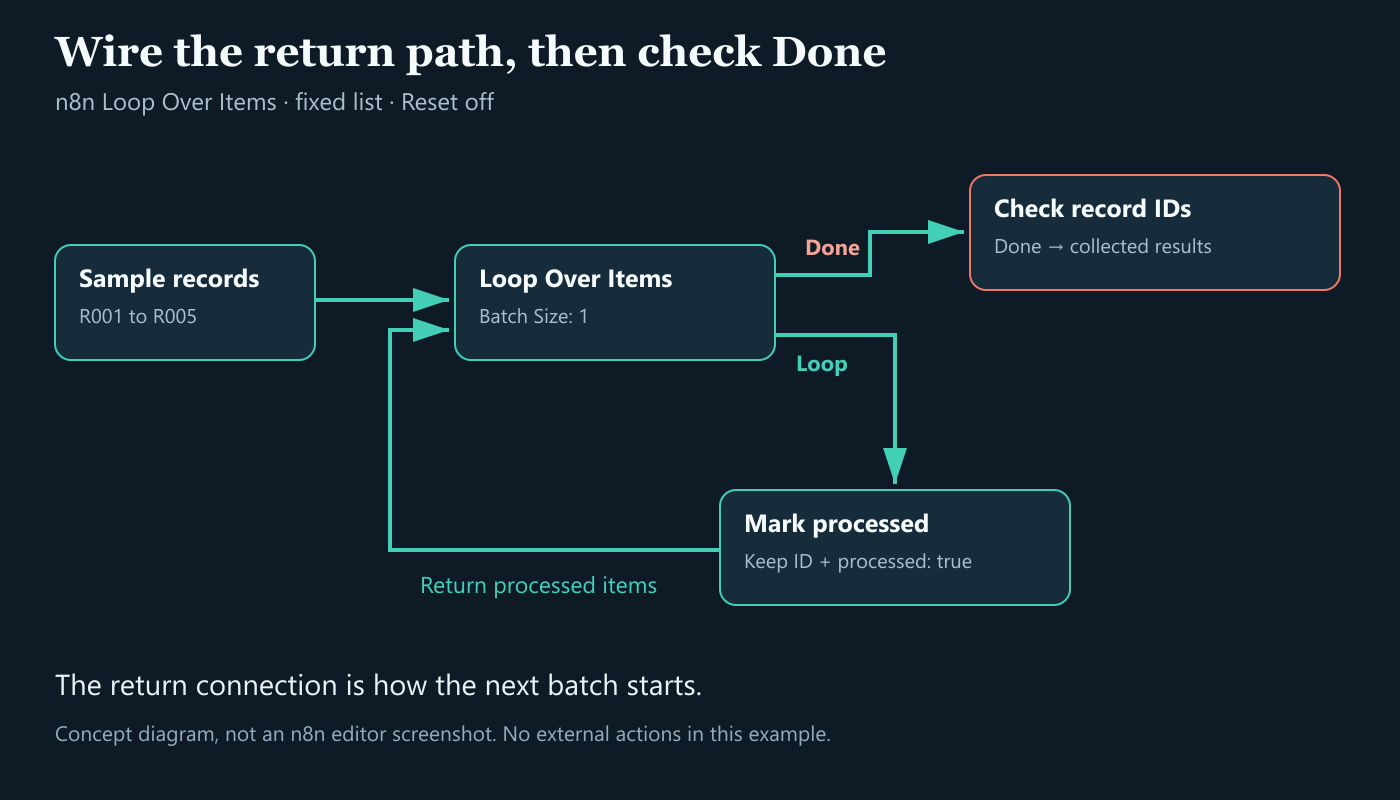
Connect Sample records to Loop Over Items. Use these settings:
| Setting | Value for this example | Reason |
|---|---|---|
| Batch Size | 1 | Send one record through the processing path |
| Reset | Off | Continue through the original fixed list |
| Loop output | Mark processed | Do the work for the current batch |
| Done output | Check record IDs | Inspect the collected results |
Use the output labels in your editor. In version 3 of the exported node, Done is output index 0 and Loop is index 1. The official node source records that order. It is easy to reverse the connections when building JSON by hand.
3. Process the current batch and return it
Add a Code node named Mark processed. Connect the Loop output to it, then paste:
return $input.all().map((item, index) => ({
  json: { ...item.json, processed: true },
  pairedItem: { item: index }
}));
This keeps the record’s fields and adds processed: true. The pairing information points each output back to its input item. n8n’s Code node linking guide explains why that link matters when a node creates new output items.
Now connect Mark processed back to the input of Loop Over Items. That return connection asks for the next batch. Do not connect it to the Done output.
This is a deliberately small learning example. A direct connection could perform the same transformation. We use a loop here so you can see its control flow without risking an external action.
4. Check the records after Done
Add a Code node named Check record IDs to the Done output. Use Run Once for All Items and paste:
const expected = $('Sample records').all()
  .map(item => item.json.record_id);
const rows = $input.all().map(item => item.json);
const ids = rows.map(row => row.record_id);
const missing = expected.filter(id => !ids.includes(id));
const unexpected = ids.filter(id => !expected.includes(id));
const counts = new Map();

for (const id of ids) {
  counts.set(id, (counts.get(id) || 0) + 1);
}

const duplicates = [...counts]
  .filter(([, count]) => count > 1)
  .map(([id]) => id);

const validInputIds = expected.every(id =>
  typeof id === 'string' && id.length > 0
) && new Set(expected).size === expected.length;

const passed = validInputIds
  && missing.length === 0
  && unexpected.length === 0
  && duplicates.length === 0
  && rows.every(row => row.processed === true)
  && rows.length === expected.length;

return [{ json: {
  passed,
  valid_input_ids: validInputIds,
  expected_count: expected.length,
  returned_count: rows.length,
  returned_ids: ids,
  missing_ids: missing,
  duplicate_ids: duplicates,
  unexpected_ids: unexpected
} }];
Run the whole workflow from Manual Trigger. For the unchanged five-record example, the expected summary is passed: true, five returned records and empty missing, duplicate and unexpected lists.
This checker assumes unique input IDs and a one-record-in, one-record-out processing step. If your real workflow splits, combines or deliberately skips records, change the expected result. The checker verifies this fixture’s data, not whether an email was delivered or an invoice was paid.
5. Try a batch size of 2
Change only Batch Size from 1 to 2 and run the workflow again. For five records, the planned batch sizes are 2, 2 and 1. Check the separate runs of Mark processed and the final summary.
For a non-empty fixed list, the number of processing batches is Math.ceil(itemCount / batchSize). This is not the count of every node execution: the loop must also be called again to finish and release the collected results.
Understand the n8n Loop Over Items Done output
The Done output is the route for collected processing results after the loop finishes. It is not a receipt for successful business actions.
Keep these three counts separate:
| Count | Question it answers | In the basic example |
|---|---|---|
| Source items | How many records entered the loop? | 5 |
| Returned processing items | How many records came back from the work step? | Expected: 5 |
| Summary items | How many reports did the checker create? | Expected: 1 |
This distinction helps with completion messages. Connecting a message node after Done does not automatically mean one message. If Done supplies five items, a node that acts on each item may send five messages. Our checker creates one summary item first.
Also check what the processing step returns. If an API replaces a customer record with a response that has no customer ID, Done will not magically restore the missing ID. Carry the ID through the processing path when you need it for the final audit.
The Loop Over Items reference describes its outputs. Our ID checker adds a separate check that the intended records actually returned.
n8n Loop Over Items not working? 7 common fixes
Troubleshoot from the last node that produced the data you expected. Start with its output, then follow the next connection.
1. Only the first item or batch runs
If n8n Loop Over Items only processes the first item, check the input count before blaming the loop. One nested array still counts as one item.
If several items reached the loop, inspect the return connection from the processing path. Then check whether a downstream node has Execute Once enabled. Turning it off may be appropriate for per-item work; it may be intentional for a single bulk request. The node settings guide explains the setting.
2. The wrong output is connected
Loop is for the work on each batch. Done is for the collected results. Read the labels rather than assuming the top or bottom connector has the role you want.
If you imported a workflow, compare its connections with the diagram above. Do not wire Done back as the normal path for requesting another batch.
3. A Filter removes every item in a batch
A processing path that returns no items can leave nothing to send back to the loop. Look for a Filter, a database lookup with no match, or a Code node returning an empty list.
For a simple fixed-list job, it can be clearer to filter before the loop. If the decision must happen inside it, keep an explicit skipped-result path that returns the original ID and a status such as skipped. Adjust the checker to accept that result.
Do not switch on Always Output Data without checking the next step. An empty item is not a valid customer record. See n8n’s Filter reference for the filtering behavior.
4. Every record gets the first record’s data
An expression that deliberately selects the first item can look correct in a one-record test and fail with several records. For example, $('Sample records').first().json.name always selects Ada from this fixture.
Use the current item’s value where that is the intended meaning, or preserve item linking when referencing earlier nodes. Do not replace every expression with .first() just to remove a warning. Our n8n expressions guide explains current-item references and common mistakes.
5. Reset keeps starting the list again
Reset tells the node to treat the incoming data as a new list. Keep it off for the fixed five-record example.
For polling or repeated fetching, define a real stopping rule and a maximum attempt count. The normal Done path is not a substitute for that rule. A loop that keeps receiving new work can keep running.
6. An error stops the return path
If the processing node fails and stops the workflow, it cannot return the next result. Inspect the failed node and decide whether the record should stop the job, be retried or be recorded as failed.
Returning error data is not the same as a successful action. Keep an explicit status in your results. For the wider failure path, use the existing n8n error workflow guide.
7. The batches finish, but requests still hit limits
Batch Size 1 means one item per pass. It does not mean one request per second. A fast processing step can still make requests too quickly.
Add an appropriate delay or use HTTP Request’s batching options. Follow the provider’s limits and inspect Retry-After when it is returned. Our HTTP 429 and Retry-After guide covers retry decisions. Before repeating a write, also consider duplicate prevention.
Loop Over Items vs Split Out and HTTP batching
These tools control different parts of the data flow. Choose the one that matches the problem you can see.
| Approach | Input grouping | Delay control | Result handling | Useful when |
|---|---|---|---|---|
| Ordinary node processing | Receives the input list | Depends on the node | Depends on the operation | The next node already handles every item |
| Loop Over Items, size 1 | One item per pass | Add it separately | Collects returned work on Done | You need a clear multi-step path for each record |
| Loop Over Items, larger size | A group per pass | Add it separately | Collects what the group returns | You need controlled groups of existing items |
| HTTP Request batching | Groups outgoing requests | Has a batch interval option | Returns HTTP responses | Your main need is request pacing in that node |
| Split Out | Expands a list field into items | None | Emits the separated items | Your records are inside one nested array |
The HTTP Request documentation lists its batching and pagination settings. Pagination retrieves more pages from an API; it is a separate problem from batching records already loaded into the workflow.
Download the workflow and check the results
Download the free Loop Over Items learning lab (ZIP). No email signup is required. Start with README.md, then import operantsolo-loop-over-items.json into a new workflow.
The download contains the workflow JSON, fictional input, checker, test notes and a license for the original lab files. Import it into a new workflow. No subscription or external account is needed for the sample’s processing steps.
Observed n8n Loop Over Items test results
We ran these four small cases manually in n8n Cloud 2.44.3 on 17 October 2026. The workflow used Loop Over Items version 3 and JavaScript Code nodes version 2, with Reset off. The last two cases deliberately broke the processing path.
| Case | Observed result | Completeness check |
|---|---|---|
| Five records, Batch Size 1 | Five processing runs; all five unique IDs returned | Passed |
| Five records, Batch Size 2 | Processing batches contained 2, 2 and 1 items; all five IDs returned | Passed |
| Return no items for the batch starting with R003 | Processing stopped after the second pass; the final checker did not run | No passing summary |
| Use the first source record for every output | Five rows returned, all R001; R002 through R005 were missing | Failed, as intended |
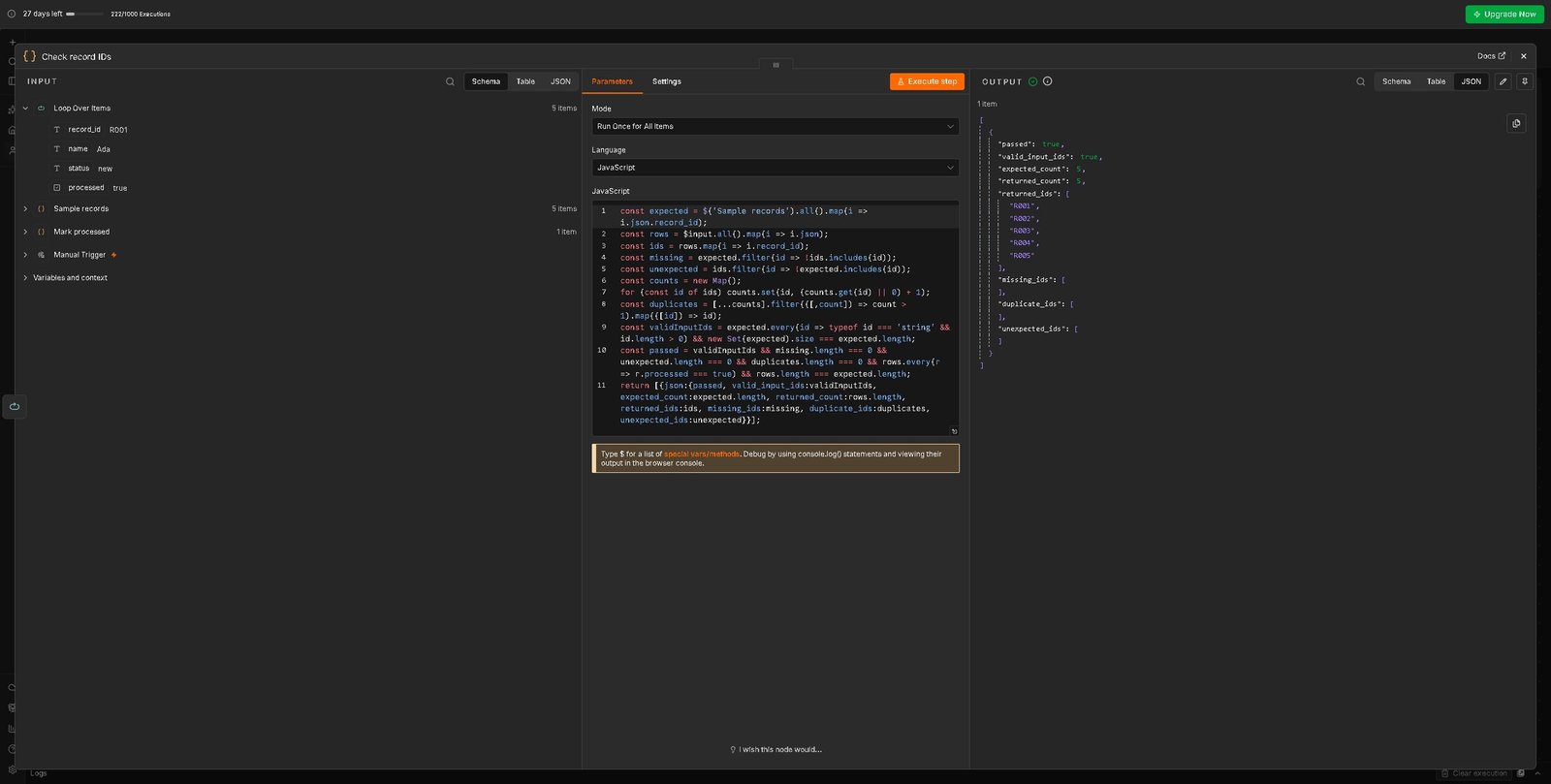
Five rows are not proof of five correct records. In the repeated-first-record case, n8n reported a successful execution, but the checker returned passed: false. It found four missing IDs and the repeated ID R001.
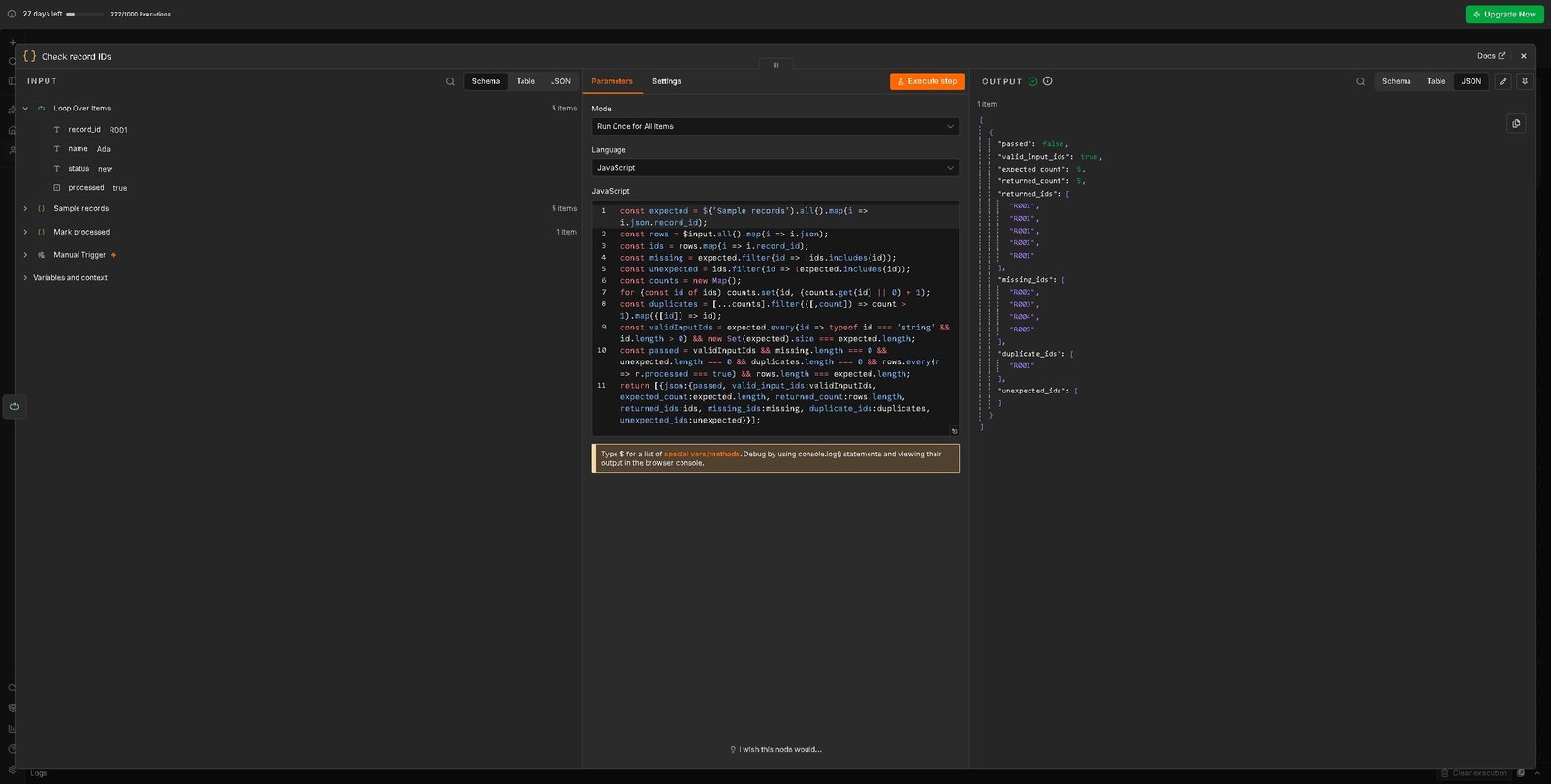
We restored the original processing code and Batch Size 1 after these checks. A further manual run passed. The download includes the observed summary JSON and test notes. These are small fixture checks, not tests of real APIs, large workloads, retries, concurrency or recovery after a restart. Reset and other unrun cases are explained from documentation rather than claimed as new test results.
Keep the checker when adapting the example, but change its rules to match your real output. Compare IDs as well as totals: five returned rows can still hide one missing row if another appears twice.
Small batches are not a promise of low memory use. The input list and collected results still have a cost. Avoid passing large files or full API responses around a long loop when a short ID and status will do. n8n’s memory troubleshooting guide explains why the size of your data and execution also matters.
Who It Is For
Use this guide if you are building your first controlled batch or tracing a loop that processes fewer records than expected. The small fixture also helps when you want to explain Loop and Done to someone else.
Once the sample is clear, try it after an existing data-cleanup step. The XML to JSON guide is one example of preparing records before processing them.
Who Should Avoid It
Avoid adding Loop Over Items just because a workflow has several records. If the direct path already processes them correctly, an extra return connection adds work to maintain.
Do not treat this sample as a durable job queue, a restart-recovery system or proof that a retry cannot repeat an external action. It is a small batch-processing example. It does not test a real provider’s limits or delivery guarantees.
Frequently asked questions
Do I need n8n Loop Over Items for every workflow?
No. Many n8n nodes already handle a list of incoming items. Add the loop when you need explicit batches or a particular operation needs repeated calls.
Why does n8n Loop Over Items process only the first item?
Common causes include a missing return connection, one nested array arriving as one item, or a later node processing only one item. Check the input count and trace the output from each processing step before changing settings.
Does the n8n Loop Over Items Done output return only the last batch?
The documented behavior is to return the collected processing results when the loop finishes. If you see only the last record, check the actual returned data and the expressions in the following node; do not assume the collection failed.
Is n8n Split in Batches the same as Loop Over Items?
Loop Over Items is the current display name used for this batching node, while older guides often call it Split in Batches. Exported workflows still use the internal type n8n-nodes-base.splitInBatches, so check the node version and output labels when following an older example.
Sources and reuse notes
The setup follows current n8n documentation and the version-3 node’s output structure. The fixture, checker and diagrams were created for this guide. Test conditions and the scope of any observed results are stated beside the download.
To cite the lab, identify OperantSolo, the article title, the stated test date and n8n version, and link to this page. For n8n’s general behavior, cite the official documentation linked in the relevant section. The lab license covers our original download files; it does not change n8n’s software license.
Want the next workflow lab? Subscribe to OperantSolo for new n8n tutorials and troubleshooting notes when they are ready. You can download this example without subscribing.
Disclosure: OperantSolo may earn a commission if you use an affiliate link to try n8n, at no extra cost to you. The fictional lab does not require a paid plan or paid API calls; your own hosting and connected services may have separate costs.
Stuck on your own n8n workflow?
Send me the failing workflow and I will send back the fix in writing. Quick fix $29, full fix $79 with a tested corrected version. You pay only after I confirm I can help.