
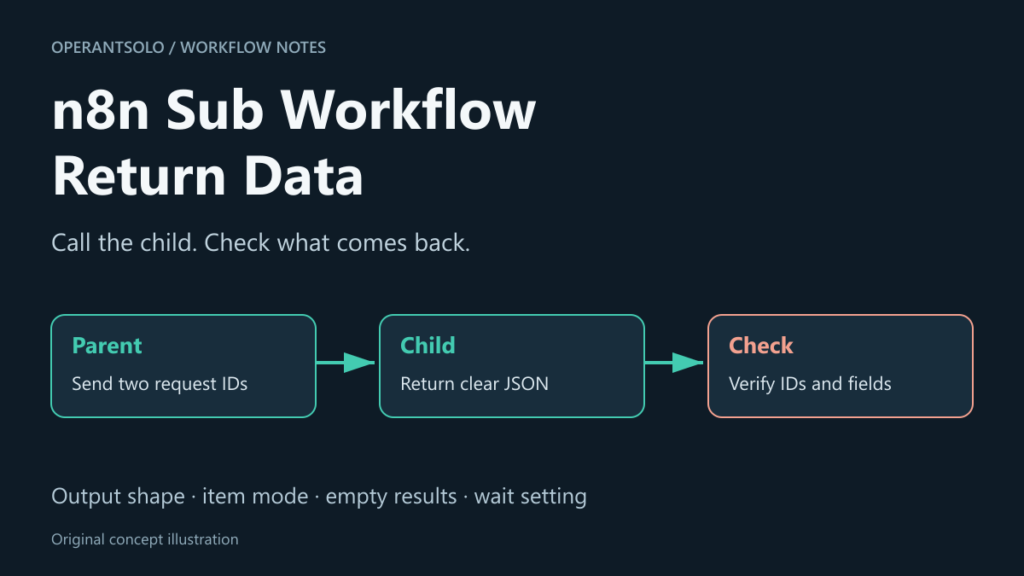
n8n sub workflow return problems can be confusing: the child shows the right result, but the parent gets old fields, an empty item, or nothing at all. Before adding more nodes, check the data at the call boundary.
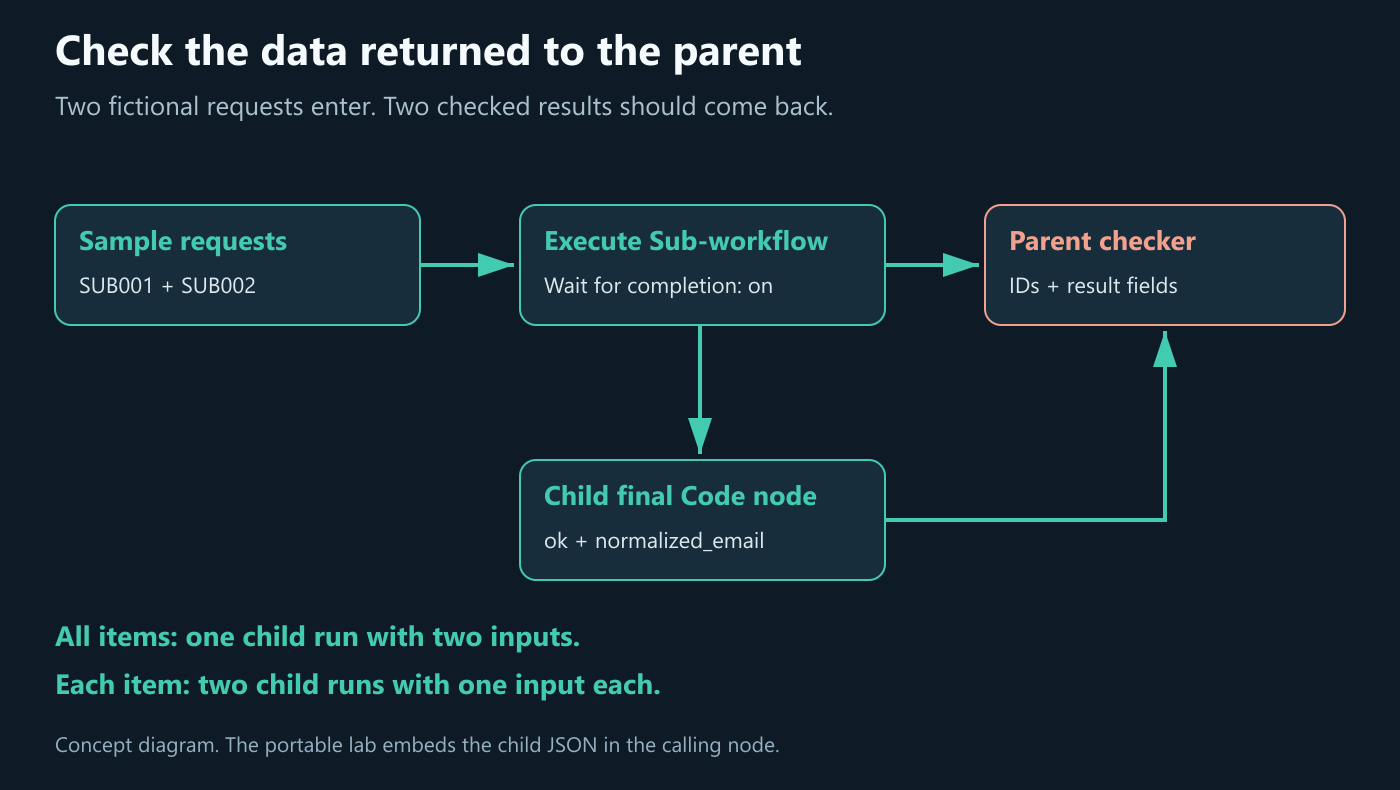
This guide uses two fictional requests to show what a parent receives. You can download the example, run it manually, and compare the returned IDs and fields with the original input.
Quick answer: how does an n8n sub workflow return data?
A sub-workflow sends its final node’s output back to the parent’s Execute Sub-workflow node when the caller waits for completion. Use a clear final output, keep the request ID, and check the returned items in the parent. If the output is empty, inspect the child’s executed path and the caller’s wait setting before changing expressions.
The n8n sub workflow return path
A parent workflow calls a child workflow and receives its result through the calling node. For a simple child with one connected path, the last node shapes the returned items. You do not need a special node called “Return Data.”
You can name a Code or Edit Fields node Return result to make the purpose clear. The name is a label, not a separate node type. n8n’s Execute Sub-workflow documentation explains the handoff between the two workflows.
Decide what the parent needs back
Our learning contract is small: every input request should return its ID, a cleaned email string, an ok flag, and the number of items that the child received. The email operation is just a visible marker that the child ran; it is not a full email-validation system.
| Field | Example | Why the parent checks it | What a mismatch suggests |
|---|---|---|---|
| request_id | SUB001 | Matches the result to the request | Wrong, missing, or repeated record |
| normalized_email | ada@example.test | Confirms the child’s transform ran | Input may have passed through unchanged |
| ok | true | Records the child’s expected result state | Result needs review or error handling |
| child_batch_size | 2 | Shows how many items entered that child run | Caller mode may differ from your intent |
The parent should check the meaning of the response before it uses it. A finished execution alone does not prove that these fields are present.
Build the n8n sub workflow return example
The downloadable lab contains a parent workflow with the child JSON embedded in its calling node. That makes the example portable: you can import one file without replacing an account-specific workflow ID. A separate child file is included if you want to save and select it from the database instead.
Download the free sub-workflow return learning lab (ZIP, about 4 KB). It includes the portable parent, a standalone child, the fictional fixture, instructions, and an MIT license for our original code. Import the parent into a new workflow and run it manually.
1. Import the parent into a new workflow
Open a blank n8n workflow and import operantsolo-sub-workflow-return-lab.json. The main canvas has four nodes: Manual Trigger, Sample requests, Call return child, and Check returned contract.
The embedded child has two nodes: When Executed by Another Workflow and a JavaScript Code node named Return checked result. This example has no credentials, network requests, or automatic trigger.
2. Check the two input items
The Sample requests Code node creates these two separate n8n items. Its mode is Run Once for All Items:
return [
  {request_id: 'SUB001', email: ' ADA@EXAMPLE.TEST '},
  {request_id: 'SUB002', email: 'Ben@Example.Test'},
].map(json => ({json}));
Both addresses use the reserved .test domain and are fictional. The spaces and uppercase letters make it easy to tell the input from the child’s result.
3. Set the child’s input and final output
The child trigger uses Input data mode: Accept all data. That is convenient for this lab, but the child must then check any required values itself. Use declared input fields for a reusable workflow where callers need a clearer input contract. See the Execute Sub-workflow Trigger guide.
The final child Code node uses JavaScript in Run Once for All Items mode:
const items = $input.all();
return items.map((item, index) => ({
  json: {
    request_id: item.json.request_id,
    normalized_email: String(item.json.email ?? '').trim().toLowerCase(),
    ok: true,
    child_batch_size: items.length,
  },
  pairedItem: { item: index },
}));
This is a one-to-one transform for our fixture. It keeps each request ID and creates new JSON fields. In production, validate the input before setting ok: true; this sample deliberately keeps business logic small so the return behavior is easy to see.
4. Check the calling node’s settings
Open Call return child and confirm:
| Setting | Lab value | Purpose |
|---|---|---|
| Source | Define Below | Uses the included child JSON |
| Workflow JSON | Embedded two-node child | Avoids a hard-coded saved workflow ID |
| Mode | Run once with all items | Sends both requests into one child run |
| Wait For Sub-Workflow Completion | On | Lets the caller receive the child result |
Some documentation calls the embedded source Parameter. The tested editor labels it Define Below. If you prefer a saved child, import the separate child file and choose Source: Database, then select that workflow. The tests below use the embedded source, not the saved-child variant.
5. Run and check what came back
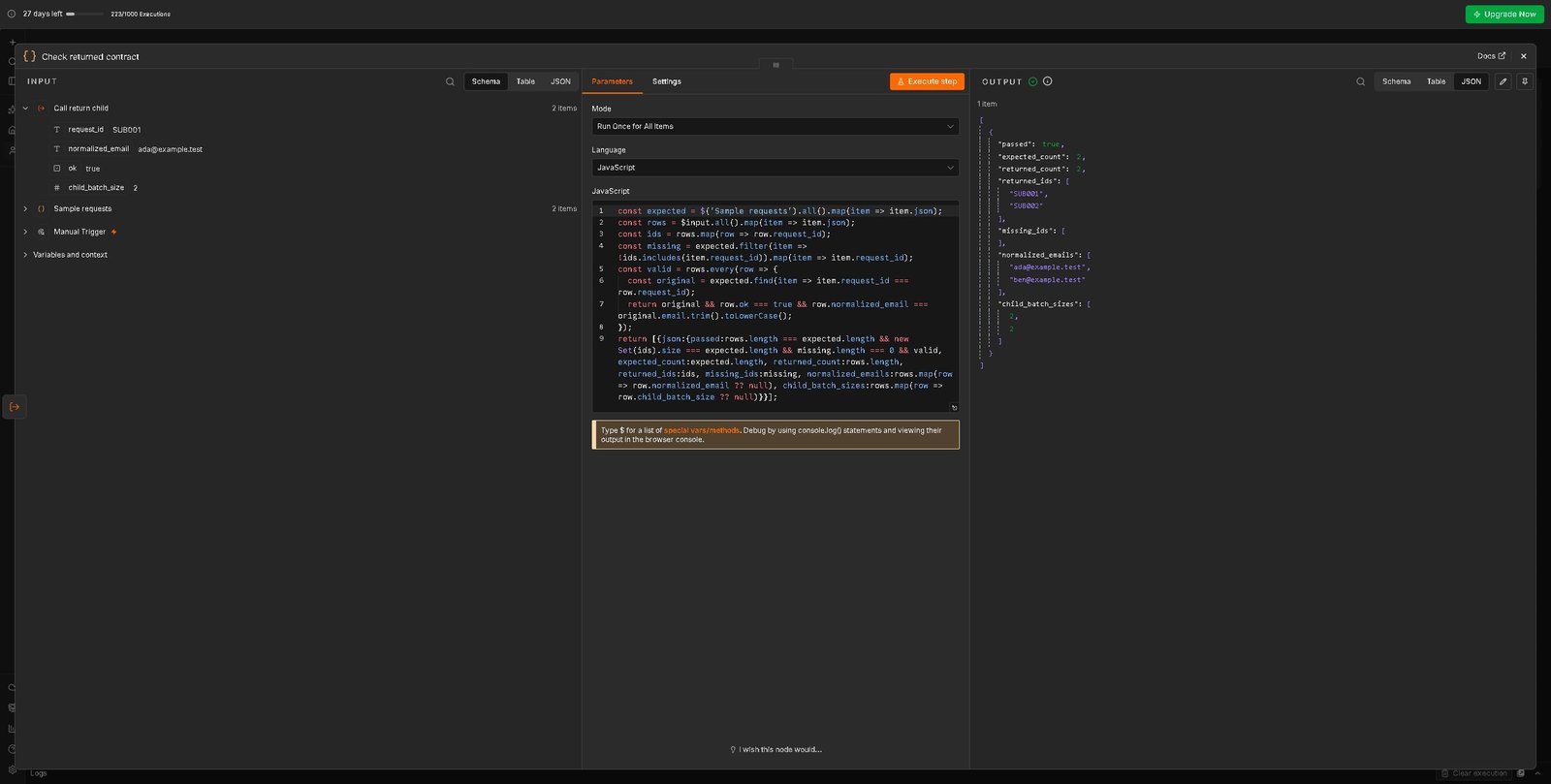
Execute the whole parent workflow. Open Check returned contract and inspect the output. The checker verifies the two expected IDs, a unique result for each request, the cleaned emails, and ok: true.
For the all-items baseline, the expected fields are:
{
  "passed": true,
  "expected_count": 2,
  "returned_count": 2,
  "returned_ids": ["SUB001", "SUB002"],
  "missing_ids": [],
  "normalized_emails": ["ada@example.test", "ben@example.test"],
  "child_batch_sizes": [2, 2]
}
The full checker is in the download. It returns a diagnostic summary; it does not send emails or write to a CRM. If you want to stop a production workflow on a failed check, route that result to an error path rather than relying on the summary alone.
What our n8n sub workflow return tests showed
OperantSolo ran the portable example manually in n8n Cloud on 17 October 2026. The parent used Execute Sub-workflow node version 1.3 with Source set to Define Below. The embedded child used an Accept all data trigger and one Code node. Both fixture records were fictional; no external service was called.
| Manual case | Parent received | Checker passed | child_batch_size values |
|---|---|---|---|
| All items; waiting on | Two checked results | true | 2, 2 |
| Each item; waiting on | Two checked results | true | 1, 1 |
| All items; waiting off | Original request fields | false | Not present |
| Child final node returns [] | No output items | Checker did not run | Not present |
| Original baseline restored | Two checked results | true | 2, 2 |
The original all-items configuration was restored and passed again after the comparisons. The checker’s passed field describes our return-contract check; it is separate from n8n’s execution status. The empty-output test produced the editor message “No output data returned.”
These are small functional checks. They do not measure speed, production capacity, or behavior after a restart. The test child does not pause for a webhook, form submission, or human approval.
5 fixes for missing or unexpected return data
1. Turn on waiting when you need the result
The Wait For Sub-Workflow Completion option and a child Wait node are separate things. The caller option controls whether the parent waits for the child’s result. A Wait node pauses the child’s own execution.
In our no-wait test, the parent received the original input fields rather than the cleaned result. The checker caught that difference. n8n’s current Execute Sub-workflow implementation also returns input items when waiting is off in the all-items path.
Use no-wait mode when later steps do not need the child’s completed output. If later work depends on the result, keep waiting enabled and test the full path.
2. Give an expected empty result a clear meaning
Our child normally returns two items. When we changed its final Code node to return [];, the call returned no items and the following parent checker did not run. An empty stream cannot carry a status field.
If “no matches” is a valid business result, consider returning a clear envelope from the child:
return [{json: {
  request_id: 'SUB001',
  ok: false,
  reason: 'no_results',
  results: [],
}}];
That is a proposed response design, not an extra test result from this lab. Change the parent’s checks to match that contract. Do not mark an empty object as success just to keep the workflow moving.
3. Check the last executed output, including branches
A result visible halfway through the child may not be what the parent receives. Inspect the actual sub-execution and follow the connected path to its final output. Keep the first diagnostic version to one clear path, as in this lab.
A resolved n8n community report describes a blank response caused by the child’s branch layout. That is one reported case, not proof that every empty response has the same cause.
If your child has several endings, make each intended path return a documented shape. Add branches back one at a time after the simple path works.
4. Match the item mode to the work
Run once with all items sent both fixture requests into one child run in our test. Run once for each item gave the child one request at a time. Both returned two final results, but child_batch_size changed from 2 to 1.
| Operational check | All items, wait on | Each item, wait on | All items, wait off |
|---|---|---|---|
| Input grouping in this lab | Two requests together | One request per child run | Two requests sent together |
| Parent uses completed child result | Yes | Yes | No |
| Returned IDs observed | SUB001, SUB002 | SUB001, SUB002 | Original input IDs |
| Cleaned email fields observed | Present | Present | Missing |
| child_batch_size observed | 2 on both results | 1 on both results | Missing |
Choose all-items mode for work that needs the group together. Choose each-item mode when the child should handle one request independently. Neither setting is a general fix for a child that drops its input or returns the wrong shape.
5. Read the calling node’s output in the parent
After the call, use fields from the current returned item when that is what the next node needs. For example, the child result in this lab has normalized_email, not the original email field. Check the JSON before writing a new expression.
Keep request_id through the boundary so you can verify which response belongs to which request. Avoid replacing every reference with .first(); that can hide a missing link while reusing one record for several requests. Our n8n expressions guide explains common field and item references.
Limits and cases that need separate testing
This example handles two small JSON items. It does not test a child containing Wait, an AI-agent tool call, parallel branches, a binary attachment, or an external side effect. For a paused child, test the actual resume path on your installed version; the Wait node documentation explains its pause and resume behavior.
Check caller permissions when using a saved child workflow. If an execution never starts, inspect access, selected workflow, and invalid node settings before debugging a return value.
n8n’s sub-workflow overview currently says sub-workflow executions do not count toward the plan’s monthly execution or active workflow limits. That does not make external API calls free or remove hosting limits. A child that sends paid API requests can still create provider charges.
For a production workflow, also decide what happens if a child writes successfully and the parent retries. Returning a result and preventing duplicate writes are different tasks. See our duplicate-prevention lab and error-workflow guide for those related checks.
Who it is for
This guide is for n8n users splitting a working workflow into smaller parts, or investigating a child that seems correct while its parent gets unexpected output. It works best when you can first reproduce the issue with a few harmless JSON records.
Who should avoid it
Do not use this learning lab as proof that a long-running approval flow, AI-agent tool, or payment workflow will return safely. Those need tests for their own execution paths, timeouts, permissions, and side effects.
Frequently asked questions
Does n8n need a Return Data node?
No special Return Data node is needed for this example. A final Code or Edit Fields node can shape the output and be named Return result to make its purpose clear.
Why is my n8n sub workflow not returning data?
Check the final executed output and whether the caller waits for completion. In our lab, an empty child output stopped the next parent node, while no-wait mode passed the original input onward.
How do I return multiple items from a sub-workflow?
Return multiple n8n items from the child’s final step and inspect them at the parent call. Our two-item fixture returned both IDs in all-items mode and each-item mode, with different child input grouping.
Should I turn on Wait For Sub-Workflow Completion?
Turn it on when the parent’s next step needs the child’s completed result. If the parent can continue independently, no-wait mode may fit, but design a separate way to observe the child’s outcome.
Get the next workflow note
Want more small n8n tests with clear expected outputs? Join the OperantSolo newsletter for new workflow notes. The learning download is free and does not require a subscription.
Editorial note: This guide contains no affiliate links. Any future affiliate recommendation will be labelled beside the link.
Stuck on your own n8n workflow?
Send me the failing workflow and I will send back the fix in writing. Quick fix $29, full fix $79 with a tested corrected version. You pay only after I confirm I can help.