
Disclosure: Operant Solo is reader-supported. We may earn an affiliate commission when you purchase through links on this page, at no additional cost to you. Recommendations are based on independent testing and evaluation.
The Endless Cycle of Copy-Pasting Inquiries
Your inbox is a goldmine of data trapped in text. Every day, incoming emails arrive from contact forms, lead generation services, and direct inquiries.
What happens next? You open the email, copy the prospect’s name, switch tabs to your CRM, and paste it. You switch back to copy their phone number, and switch tabs again. This manual data entry is soul-crushing, prone to human error, and completely unscalable.
Manual email-to-CRM entry is easy to get wrong when inquiries arrive in different formats. A parser can draft structured fields, but you still need validation, duplicate handling, and a review path before writing to your CRM.
Quick answer: An email-to-CRM workflow can read a new message, extract proposed fields such as name, email and intent, validate the sender and required values, then create or update a contact. Use a mailbox trigger for incoming email or a webhook for a service that sends one. Route uncertain or duplicate messages to review instead of automatically writing every AI output to the CRM.
Below is an n8n architecture and a small set of fictional inputs you can run through a test branch before granting CRM write access.
Try an email-to-CRM dry run
Start with the fictional email parser JSON test cases. Feed each cases item into a test branch before connecting a live inbox or CRM. The valid inquiry from Alex Rivera should produce a draft contact for review; a reply address that conflicts with the sender should go to manual review; a repeated message ID should not create a second lead. These are reproducible input and expected-output examples, not a claim that a live account was tested.
In your own workflow, use an email trigger for mailbox messages or a webhook only when the source actually sends one. Keep the original message ID and source, validate required fields, then upsert by a stable key. Log rejected cases and retry failures without sending the message body to a CRM record until the review branch approves it.
Why Traditional Email Parsers Fail
Before AI, automating this process was incredibly frustrating.
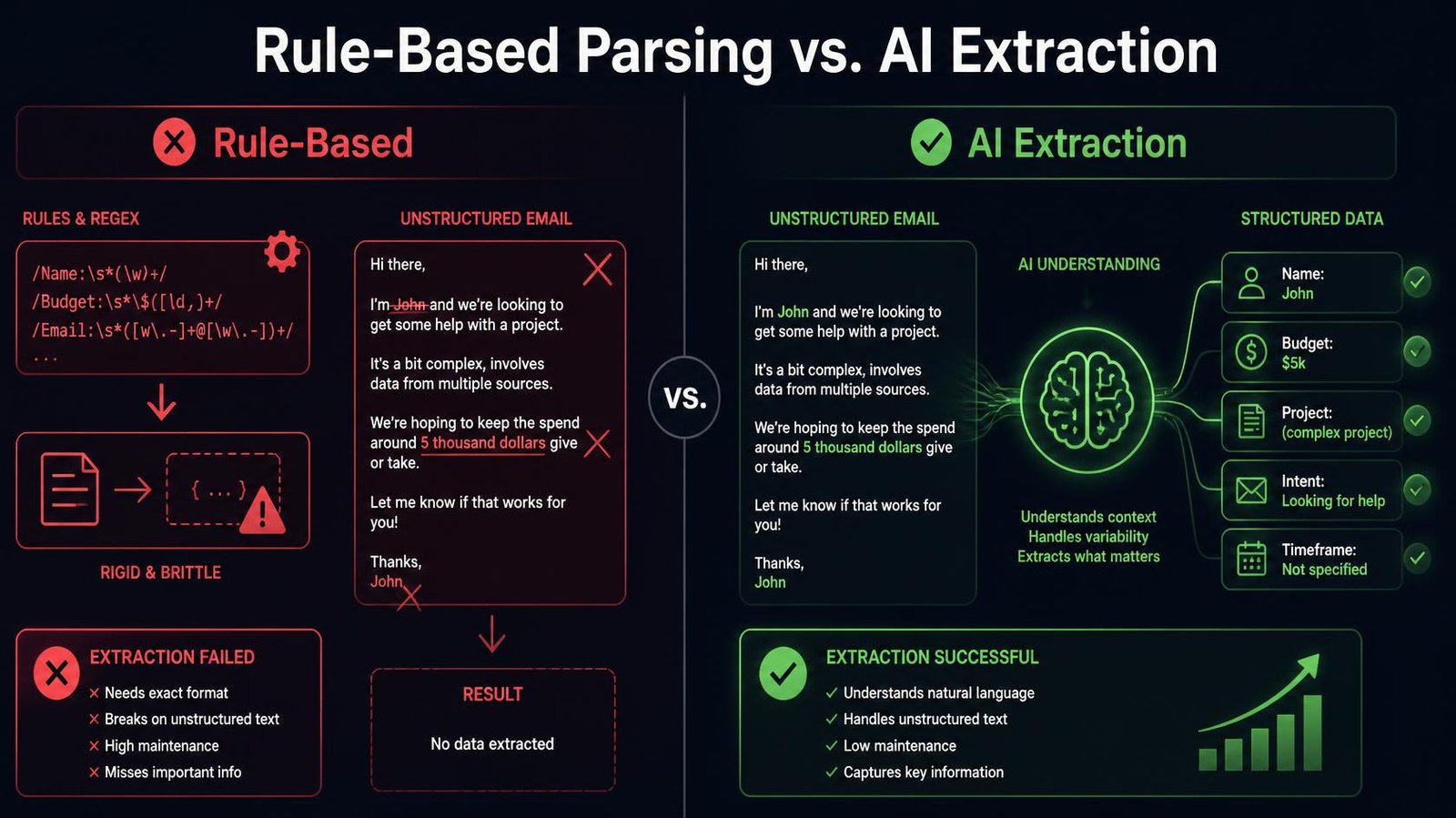
Traditional email parsing software relies on a rule based approach. To extract data from emails, you had to write complex regular expressions (Regex) or highlight specific zones in a template.
If the email said: Name: John Doe, the parser could find it. But if the next lead wrote: Hi, this is John Doe, the rule-based system would break because the format changed.
Traditional tools fail because human beings speak in natural language, not neat templates.
Large language models (LLMs) changed everything. LLM extraction does not care about formatting. You simply tell the AI, “Find the person’s name, budget, and timeline in this email.” It reads the context, understands the intent, and extracts the data perfectly, regardless of how the email is formatted.
🔄 Updated September 2026
The AI Email Parser Architecture
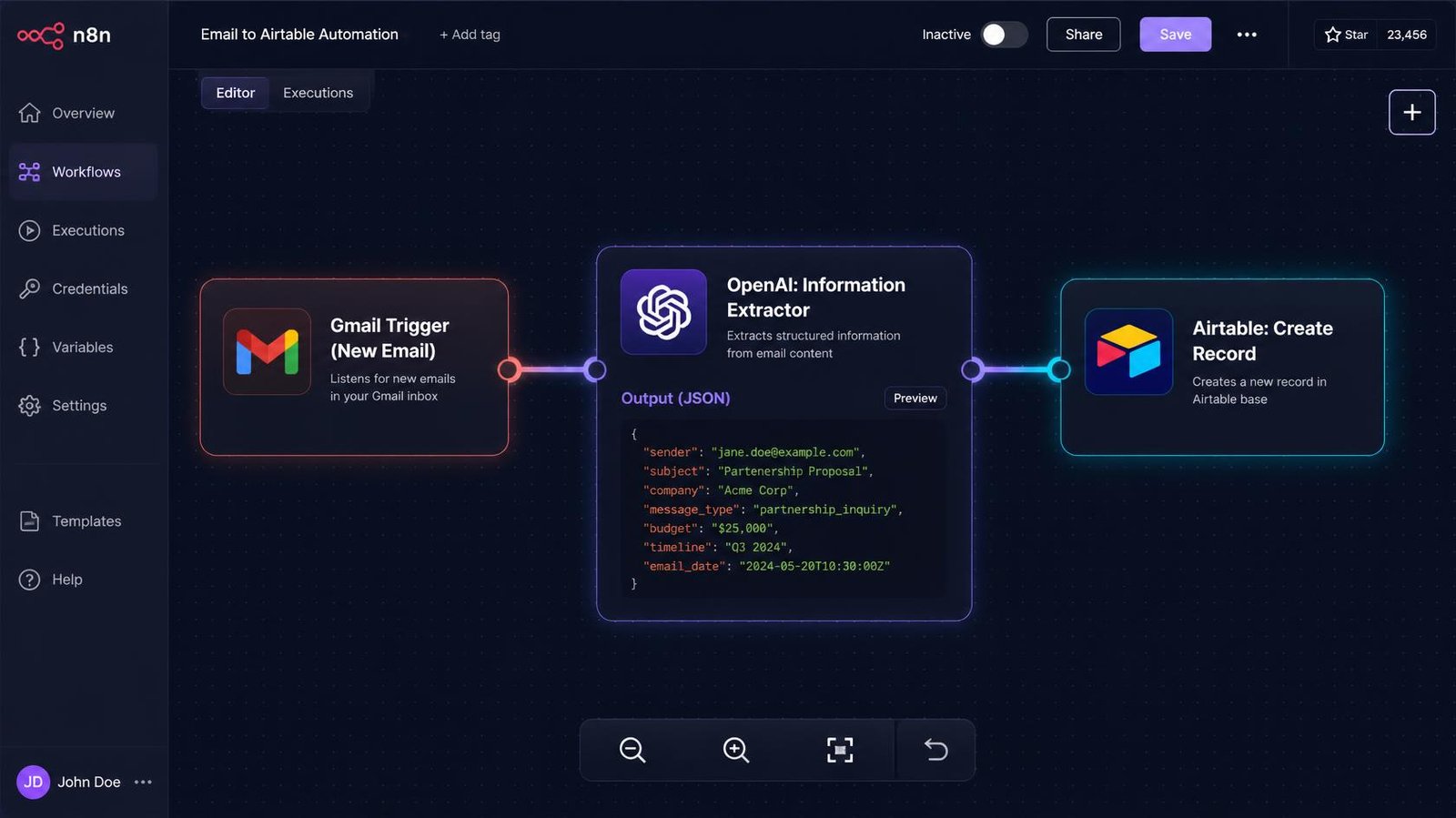
To automatically extract data and push it to your CRM, you need three components working together:
- The Ingestion Layer: How the email enters the system (Gmail node or webhook trigger).
- The Intelligence Layer: The AI model (OpenAI, Anthropic) performing the data extraction.
- The Destination Layer: Where the structured data goes (Airtable, HubSpot, Google Sheets).
We use n8n as the automation engine to connect these layers because it natively supports advanced AI routing and costs a fraction of dedicated parsing software.
| Feature | Zapier Email Parser | Dedicated Parser SaaS | n8n + LLM Extraction |
|---|---|---|---|
| Technology | Rule based / Templates | Regex / Basic AI | Advanced large language models |
| Handles messy text? | ❌ No | ⚠️ Sometimes | ✅ Yes |
| Cost for high volume | Very High (per-task) | High (monthly subscription) | Low ($20/mo + API pennies) |
| CRM Integration | Native Zapier apps | Webhooks required | Native n8n nodes |
Step-by-Step: Building Your AI Email Parser in n8n
Here is the exact blueprint to automate email to crm entry.
Step 1: The Email Trigger
First, we need to catch the incoming emails. You have two options in n8n:
Option A (Easiest): The Gmail / Outlook Node Add a Gmail trigger node. Set it to listen to a specific label (e.g., “New Leads”) or emails containing a specific subject line. When a matching email hits your inbox, the workflow starts.
Option B (Best for High Volume): Webhook Trigger If you are dealing with high volume lead ingestion, polling an inbox every minute is inefficient. Instead, set up an auto-forwarding rule in your email provider that sends specific emails to an inbound email processing service (like Mailgun or SendGrid), which instantly fires a webhook trigger to n8n. This ensures the data arrives in real time.
Step 2: The LLM Extraction Layer
This is where the magic happens. We will use ai extraction to turn a messy paragraph into clean database fields.
- Add the Basic LLM Chain node (or the newer Information Extractor node) in n8n.
- Connect your preferred AI model (OpenAI GPT-4o mini is incredibly fast and cheap for this).
- Pass the raw
Email Bodyinto the AI node. - Define your schema. This is where you tell the AI exactly what structured data to return.
In n8n, you define the schema visually. Add properties for:
Client Name(String)Company Name(String)Budget(Number)Urgency(Boolean – true if they need help this month)Summary(String – a 1-sentence summary of the request)
The System Prompt: Give the AI clear instructions: “You are a data extraction assistant. Read the provided email data and extract the requested fields. If a field is not mentioned in the email, return ‘Not Provided’. Do not invent information.”
Step 3: Pushing to the CRM
The AI node outputs perfectly formatted JSON. Now you just map those fields to your destination.
- Add a node for your CRM (Airtable, HubSpot, Pipedrive, or even Google Sheets).
- Set the action to “Create Record.”
- Drag and drop the AI’s output fields into the corresponding columns in your CRM.
Before AI:
“Hey, this is Mike from TechCorp. We’re looking to rebuild our app. We have about 10k to spend and need it done before Q4. Call me at 555-0192.”
After AI Extraction:
- Name: Mike
- Company: TechCorp
- Budget: 10000
- Phone: 555-0192
- Urgency: True
Your CRM is instantly updated. No typing required.
Validate the extraction before writing to your CRM
Define the exact fields your CRM expects before calling the model: sender email, contact name, company, request type and a nullable budget. Use Structured Outputs in n8n where your model and node support it, then put an IF or Code node before the CRM write. A valid JSON object can still contain an invented budget or the wrong email address.
Check that the extracted email address matches the message’s sender or a verified address in the message; route missing or conflicting values to manual review. Deduplicate by the email provider’s message ID so retries do not create multiple leads. Send uncertain cases to a review queue, log the source message ID and extraction result, and test forwards, signatures, empty bodies and long threads. Only the validated branch should create or update a CRM record.
Handling Complex Inquiries with Routing
Not all automated email processing is simple data extraction. What if the email is a customer support complaint, not a sales lead?
You can upgrade your ai email parser to route emails dynamically.
- Before the main data extraction node, add a lightweight AI classification node.
- Prompt it: “Categorize this email into one of three buckets: Sales Lead, Support Ticket, or Spam.”
- Use an n8n Switch Node to route the workflow.
- If Sales Lead: Send to the CRM extractor.
- If Support Ticket: Extract the issue and create a ticket in Zendesk.
- If Spam: Stop the workflow immediately to save API costs.
This architecture acts as an intelligent gatekeeper, ensuring you are only processing emails that actually matter to your bottom line.
If your CRM doesn’t offer an API, our no-API integration guide covers the workarounds.
Cost Comparison: Why Build It Yourself?
Compare a dedicated parser with an n8n workflow using your own message volume, extraction accuracy, review time and current plan prices. A lower subscription price may still cost more if you spend time maintaining prompts and mappings.
| Option | What to measure | Operational trade-off |
|---|---|---|
| Dedicated email parser | Plan limits, fields extracted, exceptions | Less custom setup; verify unusual formats |
| Zapier workflow | Billable actions per message and downstream steps | Visual integrations; task usage varies by workflow |
| n8n plus an LLM | Hosting or Cloud executions, model tokens, review time | Flexible logic; you maintain validation and prompts |
Run at least a week of representative sample messages and count the cases sent to manual review before comparing total cost. Model and automation pricing changes, so use the current provider pricing for your exact workflow.
Advanced Tip: Using Human-in-the-Loop
If you are extracting highly sensitive information — like medical intake forms or legal inquiries — you may not want the AI pushing directly to the CRM without review.
You can implement a Human-in-the-Loop workflow.
Instead of updating the CRM immediately, the workflow sends the extracted email data to a Slack channel with “Approve” and “Reject” buttons. You glance at the extraction, click Approve, and then the workflow pushes the structured data to the CRM. The reviewer can catch extraction errors before they reach the CRM; measure the actual review rate after testing your own inbox.
Download email parser test inputs
Run the fictional inbox cases through your extraction workflow and compare the review routes. The schema is an example to adapt to your own fields.
Want more practical guides? Subscribe to the Operant Solo newsletter if you like. Downloads are free without signing up.
Next Steps
Manual data entry is a choice, not a requirement. By building an ai email parser, you ensure that your CRM is perfectly maintained and that leads are captured the exact second they enter your inbox.
Start by connecting your inbox to a free n8n account. Build a simple workflow that reads an email and outputs JSON. Once you see the AI successfully pull a name and budget out of a messy paragraph, you will never go back to copy-pasting again.
Frequently Asked Questions
What is an AI email parser?
An AI email parser uses large language models (like OpenAI or Anthropic) to read unstructured incoming emails in natural language and pull out specific information (names, budgets, dates). It formats this information into structured data so it can be automatically sent to a database or CRM.
How is AI parsing different from traditional rule-based parsing?
Rule based parsers require you to write strict rules or regular expressions (Regex). If the email format changes slightly, the parser breaks. AI extraction understands context. It reads the email like a human would, meaning it can accurately extract data from emails even if the sender formats their message completely differently every time.
How do I automate email to CRM entry?
To automate email to crm entry, use an automation platform like n8n. Set up a webhook trigger or Gmail node to catch the email, use an AI node for llm extraction to pull the relevant data points, and connect a CRM node (like Airtable or HubSpot) to paste the extracted data directly into a new record.
Can an email parser handle high volume?
Yes. For high volume environments, avoid polling inboxes (checking every minute). Instead, use a mail routing service that pushes emails instantly to a webhook trigger in n8n. The AI models can process hundreds of emails per minute, updating your CRM in real time without bottlenecks.
Does AI email parsing work with Google Sheets?
Yes. If you don’t use a dedicated CRM, you can easily route the structured data from the AI node directly into Google Sheets. Simply map the extracted JSON fields (Name, Email, Inquiry) to the corresponding columns in your spreadsheet using the n8n Google Sheets node.
Related Reading:
- AI Agent Workflows for Solopreneurs: What’s Safe to Automate →
- How to Automate Client Onboarding (Stripe, Drive & n8n) →
- AI Lead Enrichment: How to Automate Client Research →
- n8n Human in the Loop: How to Safely Control AI Agents →
- n8n vs Make (2026): Which is Better for AI Automation? →
n8n
Best for: technical automation workflows
Consider n8n when your workflow needs custom logic or control over deployment. Self-hosting also requires time for updates, backups, and monitoring.
Operant Solo may earn a commission if you purchase through this link, at no extra cost to you.
Pingback: AI Lead Enrichment: How to Automate Client Research
Pingback: How to Automate Client Onboarding (Stripe, Drive & n8n)
Pingback: How to Build Multi-Model AI Agents in n8n Using GitHub's HydraFusion Patterns (Cut Costs Up to 67%) - Operant Solo
Pingback: No API Integration: 3 Ways MSPs Can Solve It in 2026
Pingback: Claude Sonnet 4.5 vs GPT-5: Which API is Cheaper in 2026?
Pingback: OpenAI Structured Outputs in n8n (Fix JSON Errors)
Pingback: Cursor AI vs Make: Should You Code Automations in 2026?
Pingback: Zapier AI Agents Review 2026: Hidden Costs & Best Alternatives