n8n Error Workflow (2026): We Broke 60+ Workflows to See What It Misses
Quick Answer: An n8n error workflow is a separate, published workflow that starts with the Error Trigger node and runs automatically when a linked workflow fails. Select it under Workflow Settings → Error workflow in every workflow you monitor. In our test on n8n 2.41.3, it caught 25 of 25 scheduled failures, but it never fires for manual runs, nodes set to “Continue,” or a polling trigger that silently stops working.
Disclosure: Operant Solo may earn a commission if you sign up through links on this page, at no extra cost to you. How we review tools.
An n8n community member recently ran a simple experiment: a workflow on a one-minute schedule with a node that always throws an error. It failed 27 times, and twelve of those failures produced no notification at all.
We wanted to know how often this happens, so we built 11 test workflows and broke them more than 60 times on n8n 2.41.3. The good news: a published error workflow caught every one of 25 scheduled failures. We couldn’t reproduce the missed alerts. The bad news: four other kinds of failure never reached the error workflow at all, and one of them left no trace anywhere in n8n.
This guide covers the setup, our test results, the four blind spots and how to close each one, plus retries for rate limits and a heartbeat for when n8n itself goes down. New to running n8n? Start with our n8n review.
Methodology: Tested on n8n 2.41.3, n8n Cloud, on September 28, 2026, using 11 purpose-built workflows on one-minute schedules over about an hour. We counted every execution and matched each failure to the alert it produced.
What an n8n Error Workflow Is (and What It Isn’t)
An n8n error workflow is a separate workflow that lets you respond to failures automatically. When a linked workflow fails, the Error Trigger node receives details about the failed workflow and its error, and runs your alert or recovery steps.
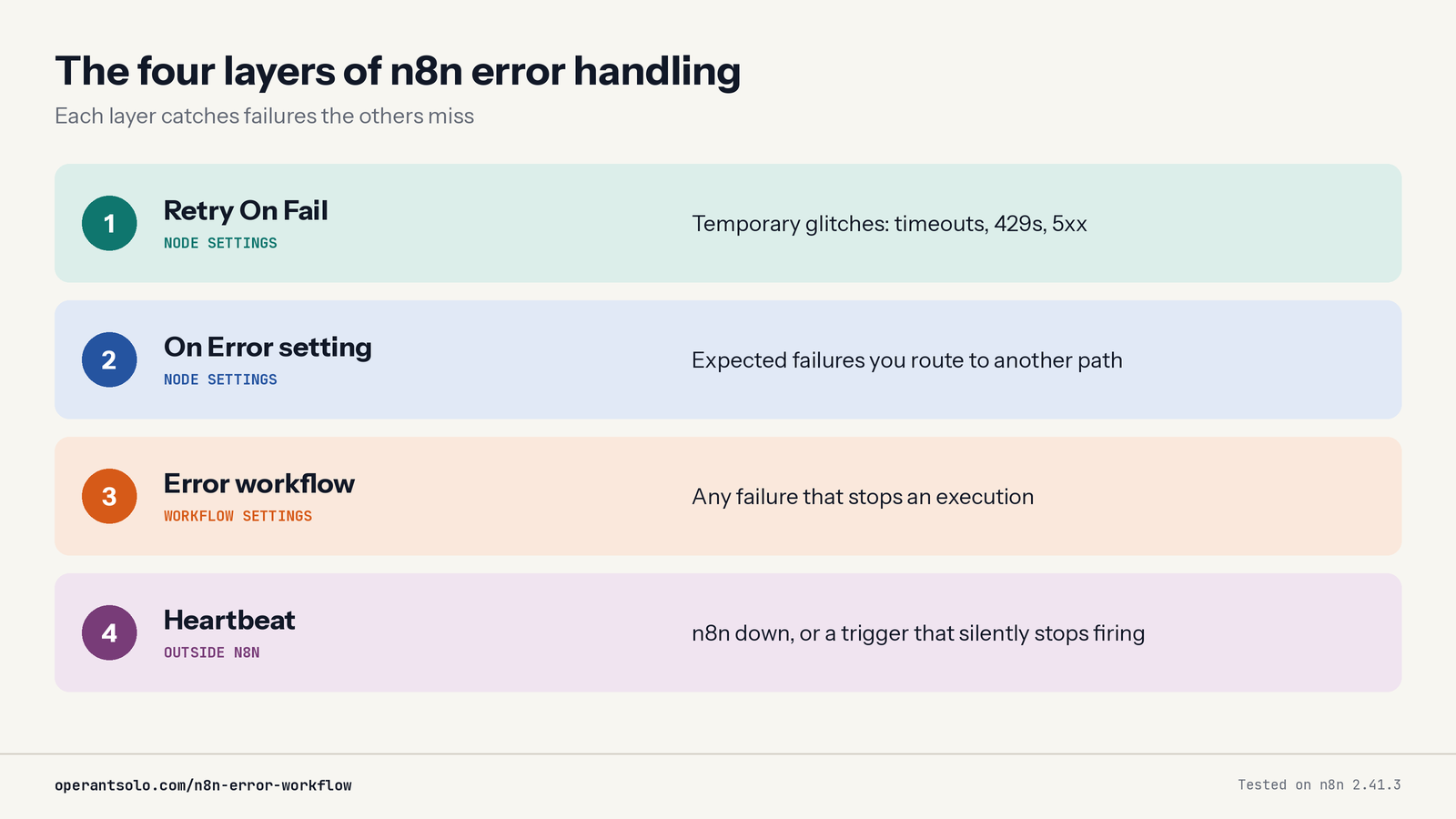
It’s one of four layers of error handling in n8n, and most setups only use this one:
| Layer | Where it’s set | What it handles | Example |
|---|---|---|---|
| Retry On Fail | Each node’s Settings tab | Temporary glitches | An API times out once, then works |
| On Error setting | Each node’s Settings tab | Expected, recoverable failures | A lookup returns nothing, so take another path |
| Error workflow | Workflow Settings | Any failure that stops an execution | Alert Slack with the failed node and the error |
| Heartbeat | Outside n8n | n8n down, or a trigger that silently stops firing | The server crashes, or a feed URL breaks |
Each layer catches failures the others miss. The rest of this guide sets up all four.
Set Up Your First Error Workflow in 5 Minutes
Step 1: Create and publish the error workflow. Create a new workflow named “Error Handler” and add the Error Trigger node as its first node. Don’t have n8n yet? Start with n8n here.
Publish this workflow. n8n’s docs say an error workflow doesn’t need to be published, but on n8n 2.41.3 the Error workflow dropdown warned that an unpublished error workflow “must be published before running in production.” We published ours for every test.
Step 2: Add an alert node. Connect a Slack, Telegram, Discord or email node to the Error Trigger. For interactive Slack messages with buttons, see our n8n human-in-the-loop tutorial.
Step 3: Build the alert message. The Error Trigger receives data about the failure. These fields are the useful ones:
| Field | What it shows |
|---|---|
workflow.name | Which workflow failed |
execution.error.message | What went wrong |
execution.lastNodeExecuted | The node that failed |
execution.url | A direct link to the failed run |
execution.retryOf | The original execution ID, if this run was a retry |
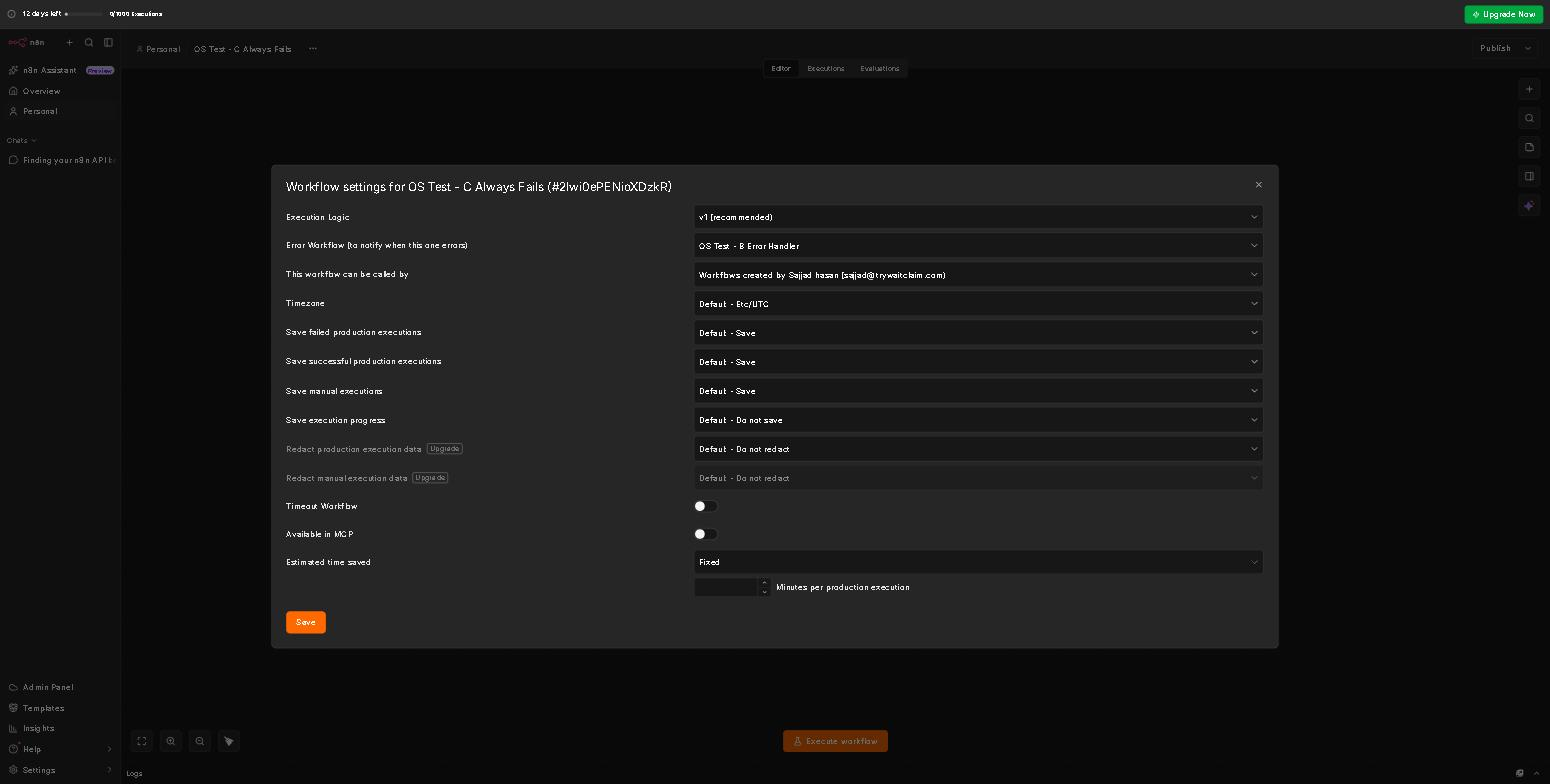
Step 4: Connect it to your workflows. In each workflow you want to monitor, open Options → Settings, and under Error workflow select “Error Handler.” You can use the same error workflow for as many workflows as you like.
Step 5: Test it with an automatic run. Create a test workflow with a Schedule Trigger and a Stop And Error node, which forces the execution to fail. Publish it, wait for the schedule to fire, and confirm the alert arrives. Then unpublish the test.
Don’t test with the Execute workflow button. The Error Trigger only runs for automatic executions. In our test, a manual run that failed produced no alert, exactly as designed, but it looks like a broken setup if you don’t know.
We Broke n8n Workflows 60+ Times: What Got Reported
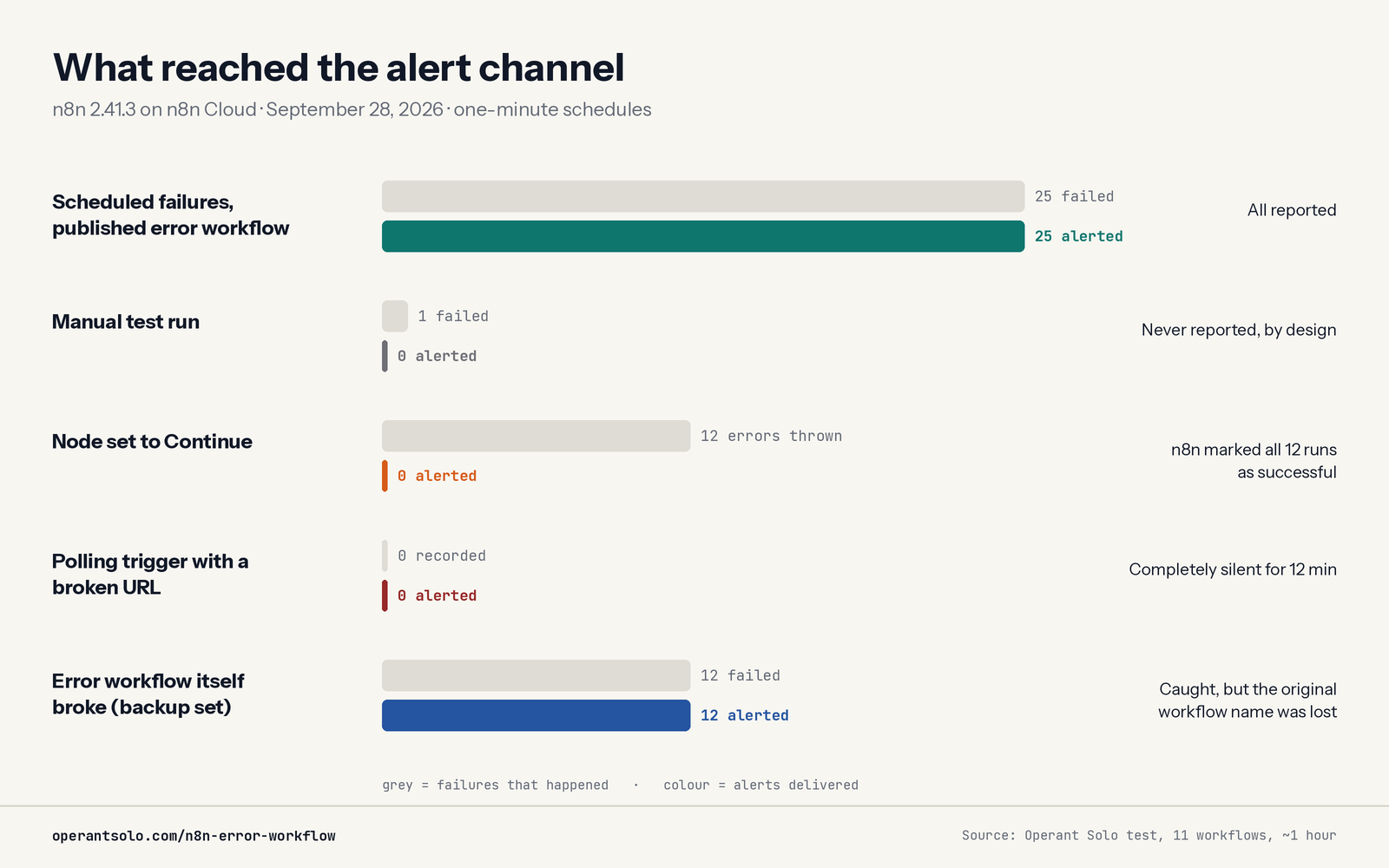
We built 11 workflows designed to fail in specific ways, ran them on one-minute schedules on n8n 2.41.3 (Cloud), and matched every failure to the alert it produced.
| Scenario | Failures | Alerts delivered |
|---|---|---|
| Scheduled failures, published error workflow | 25 | 25 |
| Manual test run | 1 | 0 |
| Node set to “Continue” | 12 (recorded as successes) | 0 |
| Polling trigger with a broken URL | 0 recorded | 0 |
| Error workflow broken, backup handler set | 12 | 12 (original workflow name lost) |
What this means: the error workflow itself is reliable. Every failure it can see, it reports. The risk is in what it can’t see. If you use “Continue” settings or polling triggers, an error workflow alone gives you false confidence.
4 Failures Your Error Workflow Won’t Catch
| # | Failure | What we saw | Fix |
|---|---|---|---|
| 1 | Manual test runs | 1 manual failure, 0 alerts | Test with a Schedule Trigger or webhook, never the Execute button |
| 2 | A node set to “Continue” | 12 errors, 0 alerts, every run marked successful | Use “Continue (using error output)” and send that output to an alert |
| 3 | A polling trigger that breaks | An RSS trigger pointed at a dead URL: 0 executions, 0 alerts, no warning in 12 minutes | Monitor for missing runs (see Heartbeat) |
| 4 | The error workflow itself fails | A backup handler caught 12 of 12, but its alerts named the broken handler, not the workflow that originally failed | Give the alert node a fallback path (see below) |
Plus one we didn’t test: n8n itself going down. An error workflow can’t run if the instance isn’t running.
On failure 2: this one hides in plain sight. Each node’s On Error setting has three options: Stop Workflow (the default), Continue, and Continue (using error output). With either Continue option, the node passes the error along instead of failing, so the execution counts as a success. In our test, the Executions list showed 12 green successes while the node threw an error on every run.
On failure 3: this was the most surprising result. The broken trigger stayed active for 12 minutes and n8n recorded nothing: no failed execution, no error, no banner. An error workflow can only respond to failures n8n records, so this one needs a monitor outside the error workflow. (We tested one polling trigger type on one version. Other triggers may behave differently.)
On failure 4: by default, a workflow containing the Error Trigger node uses itself as its error workflow. If your Error Handler breaks (for example, an expired Slack credential), it tries to report its own failure with the same broken node. In our test, pointing the broken handler at a separate backup handler worked: the backup sent 12 of 12 alerts. But those alerts named the broken handler, not the workflow that originally failed, so you’d know something broke without knowing what. The fix is below.
Build One Error Handler for Your Whole Instance
Instead of one error workflow per workflow, build one strong handler and point every workflow at it.
Node chain: Error Trigger → Code (normalize) → Google Sheets (log) → Code (dedupe) → IF (severity) → Slack
| Node | Setting | Purpose |
|---|---|---|
| Code: normalize | The script below | Turns the error data into one consistent format |
| Google Sheets | Append a row per failure | A complete failure log, including suppressed alerts |
| Code: dedupe | The script below | At most one alert per workflow every 15 minutes |
| IF: severity | Check whether the workflow name contains [critical] | Critical workflows alert immediately; others can go to a daily digest |
| Slack | Message built from normalized fields | The alert your team sees |
The Sheets log comes before dedupe, so every failure is recorded even when an alert is suppressed.
Code node 1: normalize the error data. This is the normalize step from our tested handler, which processed all 25 scheduled failures correctly. The trigger-failure branch follows n8n’s documented data format. Our broken-trigger test produced no error data at all, so that branch couldn’t be tested.
Javascript
// Normalize error data so execution failures and
// trigger-node failures produce the same fields
const d = $input.first().json;
const isTriggerFailure = !d.execution && d.trigger;

return [{
  json: {
    workflowId: d.workflow?.id ?? 'unknown',
    workflowName: d.workflow?.name ?? 'Unknown workflow',
    message: (isTriggerFailure
      ? d.trigger?.error?.message
      : d.execution?.error?.message) || 'No error message',
    failedNode: isTriggerFailure
      ? (d.trigger?.error?.node?.name ?? 'Trigger node')
      : (d.execution?.lastNodeExecuted ?? 'Unknown node'),
    url: d.execution?.url ?? null,
    isRetry: Boolean(d.execution?.retryOf),
    source: isTriggerFailure ? 'trigger' : 'execution',
    time: new Date().toISOString(),
  }
}];
Code node 2: suppress repeat alerts (a production add-on, not part of our test):
javascript
// Allow at most one alert per workflow every 15 minutes
const WINDOW_MS = 15 * 60 * 1000;
const store = $getWorkflowStaticData('global');
store.lastAlert = store.lastAlert || {};

const item = $input.first().json;
const now = Date.now();
const last = store.lastAlert[item.workflowId] || 0;

if (now - last < WINDOW_MS) {
  return []; // an alert for this workflow was sent recently
}

store.lastAlert[item.workflowId] = now;
return [{ json: item }];
Static data is saved only on automatic runs, which is how the Error Handler always runs, so the 15-minute memory persists between failures.
Slack message text:
🚨 *{{ $json.workflowName }}* failed at *{{ $json.failedNode }}*
{{ $json.message }}
{{ $json.url ?? 'No execution link (the trigger node failed)' }}
Protect the alert itself. Our test showed a backup handler catches a broken error workflow, but its alert names the handler, not the workflow that originally failed. A better fix keeps that context: set the Slack node’s On Error to Continue (using error output) and send that output to an email node with the same message. If Slack fails, the email still says which workflow broke. Keep a backup handler too (Error Trigger → Send Email), and select it as the Error Handler’s own error workflow, for failures elsewhere in the handler.
Download the tested handler: Unzip it, then in n8n go to Workflows → Import from file and select the .json file. Open the Send Alert node and replace https://YOUR-ALERT-WEBHOOK-URL with your own alert destination, such as a Slack incoming webhook URL. Publish the workflow, then select it as the Error workflow in each workflow you want to monitor.
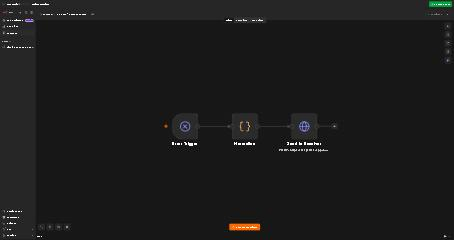
Run this on n8n. One error handler, every workflow covered. Get started with n8n →
Retries: Fix Temporary Errors Before They Become Alerts
Many failures are temporary: a timeout, a server hiccup, a rate limit. Retrying them quietly beats waking you up.
Turn on Retry On Fail
Open the node, go to Settings, and turn on Retry On Fail. Set Max Tries to how many times n8n should retry, and Wait Between Tries (ms) to the delay between attempts. For rate limits, set the wait longer than the API’s limit. For example, if an API allows one request per second, use 1000.
Tested: a bug reported in 2024 said Retry On Fail was ignored when On Error was set to “Continue.” On n8n 2.41.3, it’s fixed. With Max Tries set to 3, the node made 3 attempts on every run with both “Stop Workflow” and “Continue (using error output).”
Handle 429 rate-limit errors
When n8n receives a 429 error, the node shows “The service is receiving too many requests from you.” You have two options: Retry On Fail, or a Loop Over Items + Wait combination that splits requests into smaller batches with pauses between them. The HTTP Request node also has a built-in Batching option that does the same thing.
For APIs with strict limits, use exponential backoff: wait 2 seconds, then 4, then 8, capped at a maximum. Set the API node’s On Error to Continue (using error output), send the error output to this Code node, then to a Wait node that uses {{ $json.waitSeconds }}, and loop back to the API node:
javascript
// Exponential backoff: 2s, 4s, 8s, 16s, 32s, capped at 60s
const attempt = ($json.attempt ?? 0) + 1;
const MAX_ATTEMPTS = 5;
const waitSeconds = Math.min(2 ** attempt, 60);

return [{
  json: { ...$json, attempt, waitSeconds, giveUp: attempt > MAX_ATTEMPTS }
}];
Add an IF node on giveUp: when it’s true, send the item to a Stop And Error node. That fails the execution and triggers your error workflow. Check that your loop passes the original request data back to the API node.
Retry or alert?
| Error | Action |
|---|---|
| 429 rate limit | Retry with backoff |
| 5xx server errors, timeouts | Retry 2–3 times, then alert |
| 401 / 403 authentication | Alert immediately. Retrying won’t fix expired credentials |
| 400 bad request | Alert immediately. The data needs fixing |
To rerun a failed execution by hand, open it from the Executions list and use its retry option.
Add a Heartbeat: Catch What the Error Workflow Can’t
An error workflow can’t report its own instance being offline, and our test showed it can’t report a trigger that stops firing without an error. Both need a check from outside.
- Self-hosted: point an external uptime monitor at your instance’s
/healthzendpoint (for examplehttps://your-n8n-domain/healthz). The monitor alerts you when it stops responding. - Cloud or self-hosted, as a “dead man’s switch”: create a workflow with a Schedule Trigger every 5 minutes and an HTTP Request node that pings a heartbeat service such as Healthchecks.io. If the pings stop, the service alerts you. This is stronger than a health check, because it proves workflows are actually executing.
- Watch for missing runs. For critical workflows, check that they’ve actually run: if a workflow that should run hourly shows no executions for three hours, alert yourself. Whatever tool you use, the rule is the same: alert on silence, not just on errors.
Keep your instance patched too: see n8n security vulnerabilities in 2026.
Production Checklist
- One Error Handler, published, selected in every production workflow’s settings
- Tested with an automatic run, not the Execute button
- Every node set to “Continue” is audited, and its errors routed to an alert
- Critical polling-trigger workflows are monitored for missing runs
- The alert node has a fallback path, and the handler has a backup error workflow
- Repeat alerts are deduplicated
- Flaky API nodes use Retry On Fail
- 401, 403 and 400 errors alert immediately instead of retrying
- A heartbeat monitors the instance from outside n8n
- The failure log gets reviewed weekly
FAQ
Why isn’t my n8n error workflow triggering?
The most common reasons: you tested with a manual run (error workflows only fire on automatic executions), the error workflow isn’t published (n8n 2.41.3 warns it must be), or a node is set to “Continue,” which marks the run as successful. In our test, a polling trigger with a broken URL also failed silently, recording nothing at all.
Does the error workflow work on n8n Cloud?
Yes. We ran our entire test on n8n Cloud (version 2.41.3), and the error workflow reported all 25 scheduled failures. On Cloud, use the scheduled “dead man’s switch” method for heartbeat monitoring, since you can’t monitor the server directly.
Can one error workflow monitor all my workflows?
Yes. Select the same error workflow in the settings of every workflow, and include the workflow name in your alert so you know which one failed.
How do I retry a failed workflow in n8n?
For automatic retries, turn on Retry On Fail in the failing node’s settings. In our test on 2.41.3, it worked with every On Error setting. For a manual rerun, open the failed execution from the Executions list and retry it. For rate limits, use an exponential backoff loop.
How do I handle 429 rate-limit errors in n8n?
Use Retry On Fail with Wait Between Tries set longer than the API’s limit, or batch your requests with Loop Over Items and a Wait node. For strict APIs, use exponential backoff so each retry waits longer than the last.
Editorial Disclosure: Operant Solo is reader-supported. When you purchase through links on our site, we may earn an affiliate commission at no additional cost to you. We only review and recommend software we independently test and validate.