Stop Treating Admin Work Like It’s Part of the Job
The worst part of selling digital services isn’t the actual work. It is the copy-pasting.
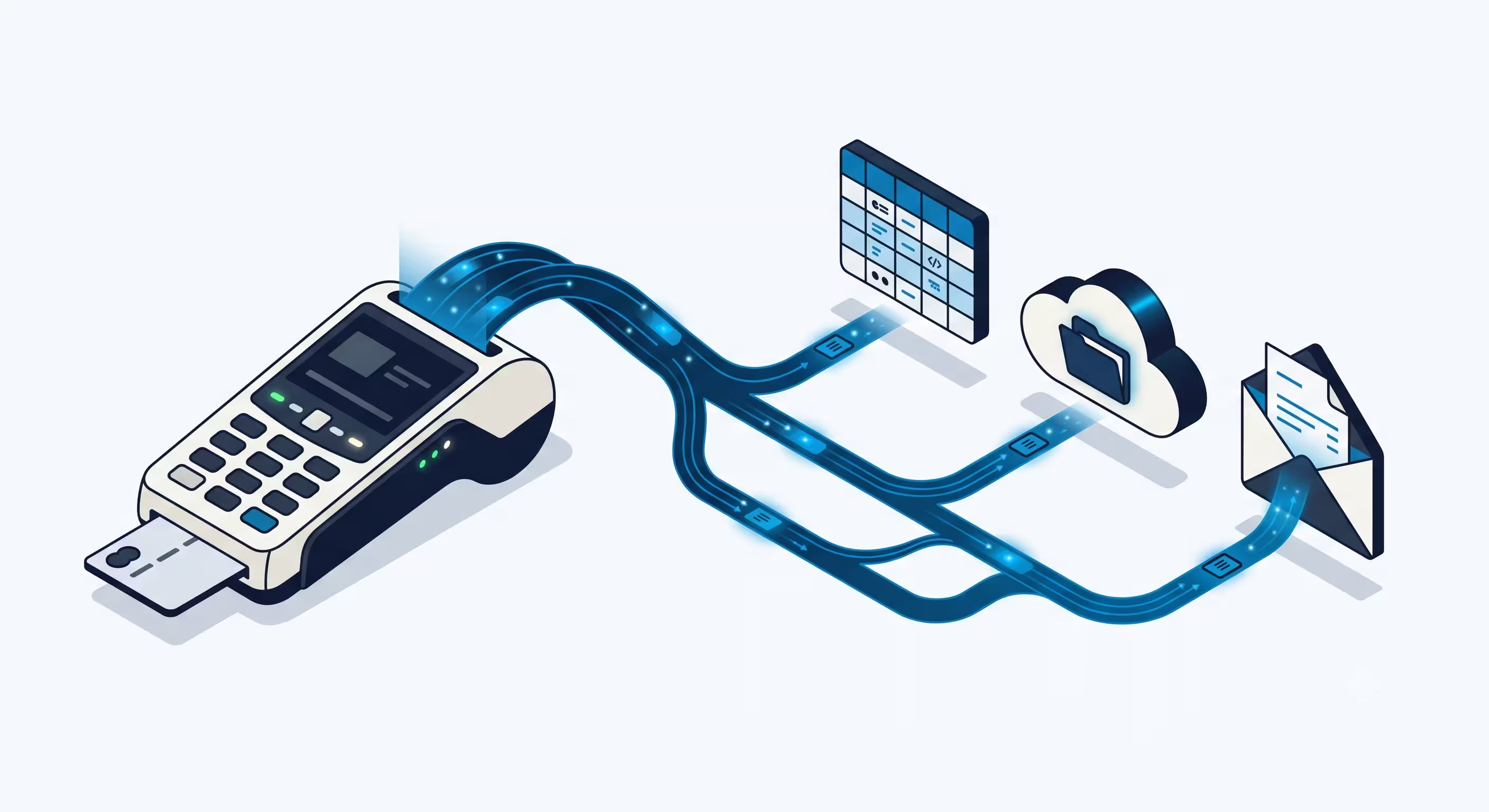
Let’s say you sell custom Python scripts, consulting hours, or digital service plans online. A client buys something. Now you have to check your email to confirm the payment. You have to manually type their details into a spreadsheet. You have to create a Google Drive folder for their project. Then you have to write a welcome email and attach the links.
You just wasted 30 minutes doing free admin work. If you get ten clients a week, you are losing five hours of your life to tasks a computer can do in three seconds.
You don’t need to hire a team member. You just need to hook up a few specific tools to handle the busywork for you. Here is the exact setup you need to automate your freelance business, and the specific tools you should use to do it.
Disclosure: Operant Solo is reader-supported. We may earn an affiliate commission when you purchase through links on this page, at no additional cost to you. Recommendations are based on independent testing and evaluation.
Here is how to automate freelance business
How Much Time Are You Actually Losing?
Before we talk about solutions, let’s quantify the problem. Most freelancers dramatically underestimate the time they spend on non-billable admin work.
Here’s a realistic audit for a freelancer with 10 clients per week:
The math is brutal. If you charge $50/hour, that’s over $16,000 in unbillable time every year — just from manual admin. A freelance automation workflow that costs $20/month and takes a weekend to set up pays for itself in the first client.
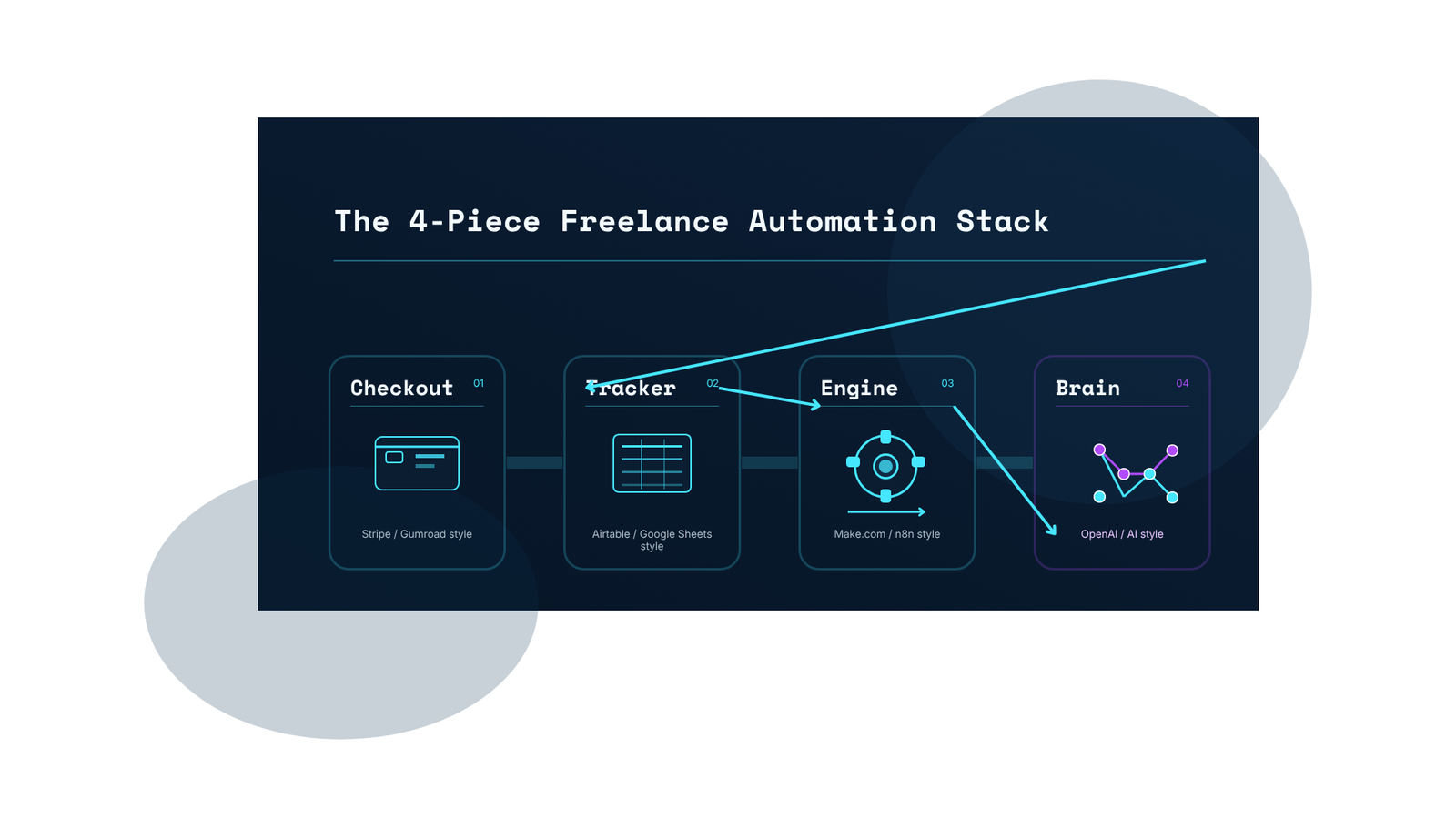
The 4-Piece Freelance Automation Stack
You need four types of tools working together. Think of them like a relay race: each one passes the baton to the next.
1. The Checkout — Where You Take the Money
You need a payment tool that easily talks to other software. Not just a payment link — a platform with robust API triggers and webhook support.
Stripe is the standard if you’re selling custom freelance services or sending invoices. It costs nothing to set up (they take a small percentage per transaction). More importantly, when a payment goes through, Stripe fires a webhook signal that your automations workflow engine can listen to in real time.
Gumroad works better if you’re selling pre-packaged digital files, templates, or subscriptions. It’s basically a storefront in a box — upload your file, set a price, get a link.
| Stripe | Gumroad | |
|---|---|---|
| Best for | Custom services, invoices, subscriptions | Digital products, templates, ebooks |
| Setup time | 30 minutes | 10 minutes |
| Fees | 2.9% + $0.30 per transaction | 10% flat fee |
| Webhook support | ✅ Yes — fires in real time | ✅ Yes |
| Connects to Make/n8n | ✅ Native integration | ✅ Via Zapier/webhook |
| Best for automation | ⭐⭐⭐⭐⭐ | ⭐⭐⭐⭐ |
2. The Tracker — Where You Keep the Data
Once the prospective client pays, you need a place to store their project details — not a standard Excel sheet.
Airtable looks like a spreadsheet but is actually a relational database with drag and drop field creation. You can set it up so that the moment a new client’s name drops into a row, the status automatically says “Needs Onboarding.” The free tier handles up to 1,000 records, which is more than enough when starting out.
Google Sheets is the zero-cost alternative. It connects natively to Make and n8n, lets you share with any team member, and most freelancers already have a Google account. It lacks some of Airtable’s relational features, but for a simple intake tracker it’s perfect.
When to use which:
| Airtable | Google Sheets | |
|---|---|---|
| Cost | Free up to 1,000 records; $10/mo for more | Free (unlimited rows) |
| Interface | Drag and drop fields, kanban, gallery views | Classic spreadsheet |
| Automation triggers | Native automations + connects to Make/n8n | Via Make/n8n webhook |
| Sharing with team | Per-seat pricing | Free unlimited sharing |
| Client experience | Can share as client portal | Shareable but not polished |
| Best for | Growing agencies, complex projects | Solo freelancers, simple tracking |
3. The Engine — How the Apps Talk to Each Other
This is the most important part. You need a tool sitting in the middle, listening for the Stripe payment, and then automatically updating Airtable and sending the emails. This is your client intake automation engine.
Make vs n8n for Freelancers — The Honest Comparison
This is the most common question in every freelance automation forum. Here’s the real answer:
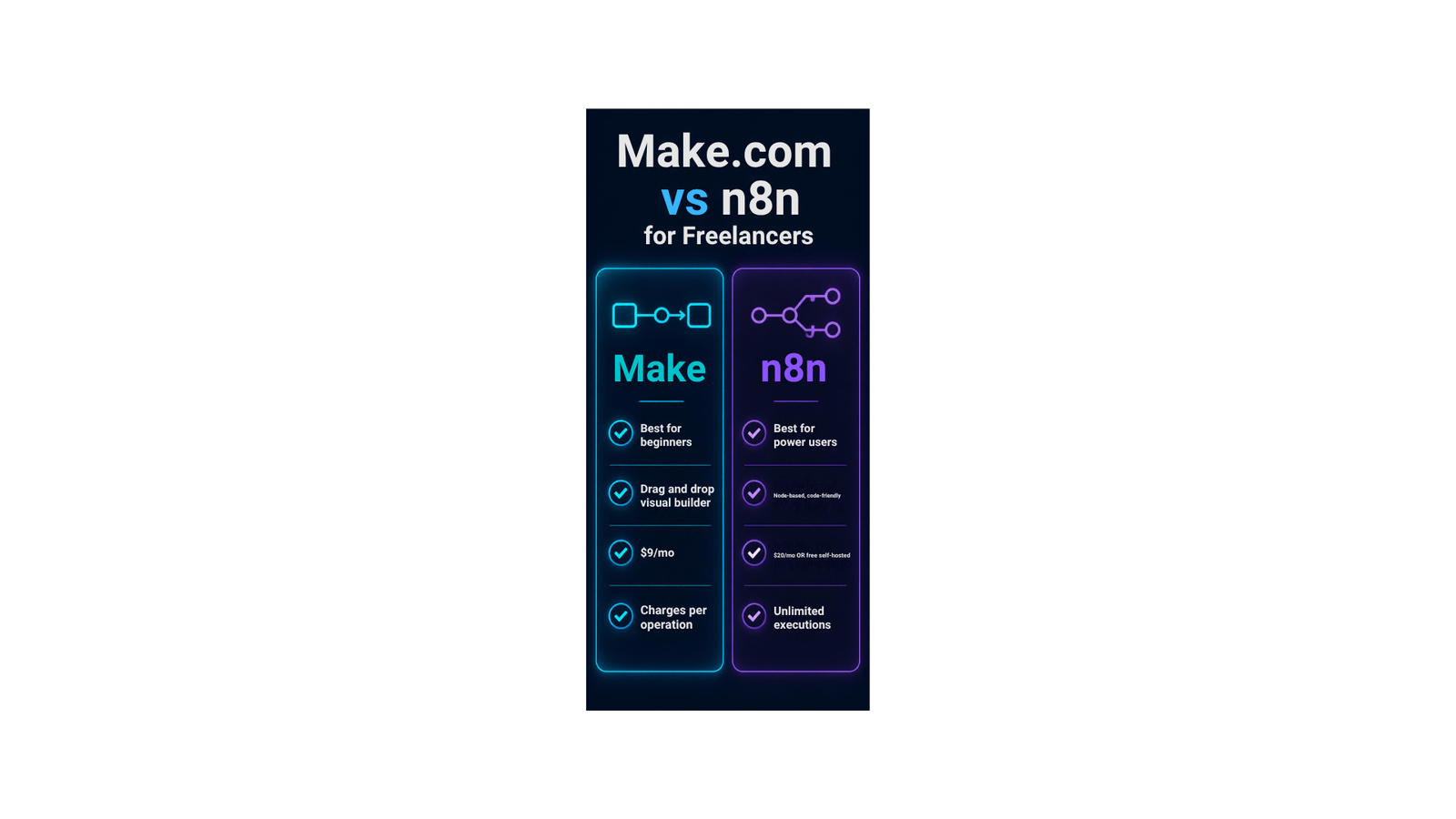
Make.com is the easiest automation platform to start with. It gives you a visual canvas — you drag and drop a Stripe bubble, connect it to a Gmail bubble with a line, and your workflow is built. No code required. The free plan is generous, and the paid plan starts around $9/month. The downside: they charge you per “operation” (each step your automation takes), which adds up fast with ai powered workflows that chain multiple actions.
n8n is what you use when you want to get serious. It’s harder to learn than Make but vastly more powerful, especially for integrating ai tools and building multi-step workflows. Their cloud plan is $20/month, but they don’t charge per operation — unlimited executions. If you’re comfortable renting a basic cloud server ($5/month on DigitalOcean), you can self-host n8n and run unlimited automations workflow entirely for free.
| Make.com | n8n (Cloud) | n8n (Self-hosted) | |
|---|---|---|---|
| Monthly cost | $9 (Core) | $20 | ~$5 (server only) |
| Execution limit | 10,000 ops/mo | Unlimited | Unlimited |
| Drag and drop | ✅ Yes | Partial | Partial |
| AI / LLM nodes | ✅ Built-in | ✅ Advanced | ✅ Advanced |
| Learning curve | Low | Medium | Medium-High |
| Best for HITL | Basic | ✅ Advanced (Wait node) | ✅ Advanced |
| Data privacy | Cloud | Cloud | ✅ Your server |
| Who it’s for | Beginners, simple workflows | Serious builders | Technical freelancers |
Our recommendation: Start with Make. Build your first two workflows. When you outgrow the operation limits or want to add an ai agent layer, move the important workflows to n8n.
4. The Brain — AI-Powered Client Intake
If you just want to send a welcome email, you don’t need AI. But if you want your system to automatically qualify a prospective client’s request, score leads, draft a custom reply, and flag high-value opportunities — you need an intelligence layer.
Don’t buy a $20 ChatGPT Plus subscription for this. Open a developer account with OpenAI and connect their API to Make or n8n.
When you use the API, you only pay for what the AI reads and writes. Having an ai agent read a client’s project brief and summarize it inside Airtable costs a fraction of a cent. You’ll likely spend less than a dollar a month.
Here’s what an ai powered intake layer can do automatically:
- Lead scoring: Read the intake form response and assign a score (1–10) based on budget, timeline clarity, and project fit.
- Qualifying leads: Flag leads that mention specific keywords (“budget is flexible,” “urgent timeline,” “long-term engagement”) as high priority.
- Response times: Draft a personalized initial reply within seconds of form submission — improving response times from hours to instant.
- Client experience: Reference the client’s specific project details in the reply, not a generic “thanks for reaching out.”
- Google Sheets update: Summarize the intake form in a structured row — client name, project type, budget range, urgency level — so your tracker is always clean.
If you’d rather use an AI assistant than build workflows, weigh Claude for small business against DIY automation first.
The Complete Automated Client Intake Workflow
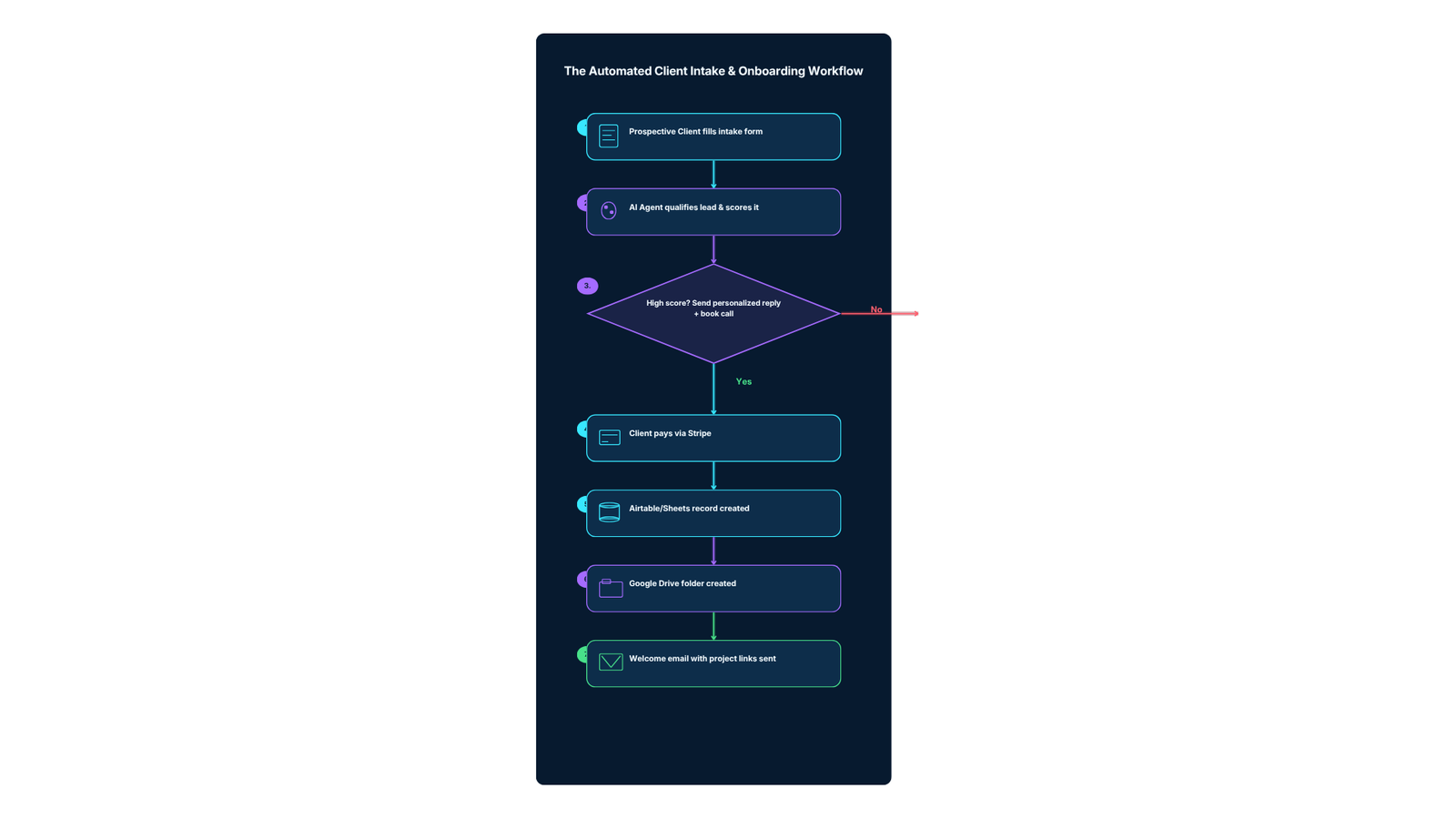
Let’s put this all together into a step-by-step freelance automation workflow:
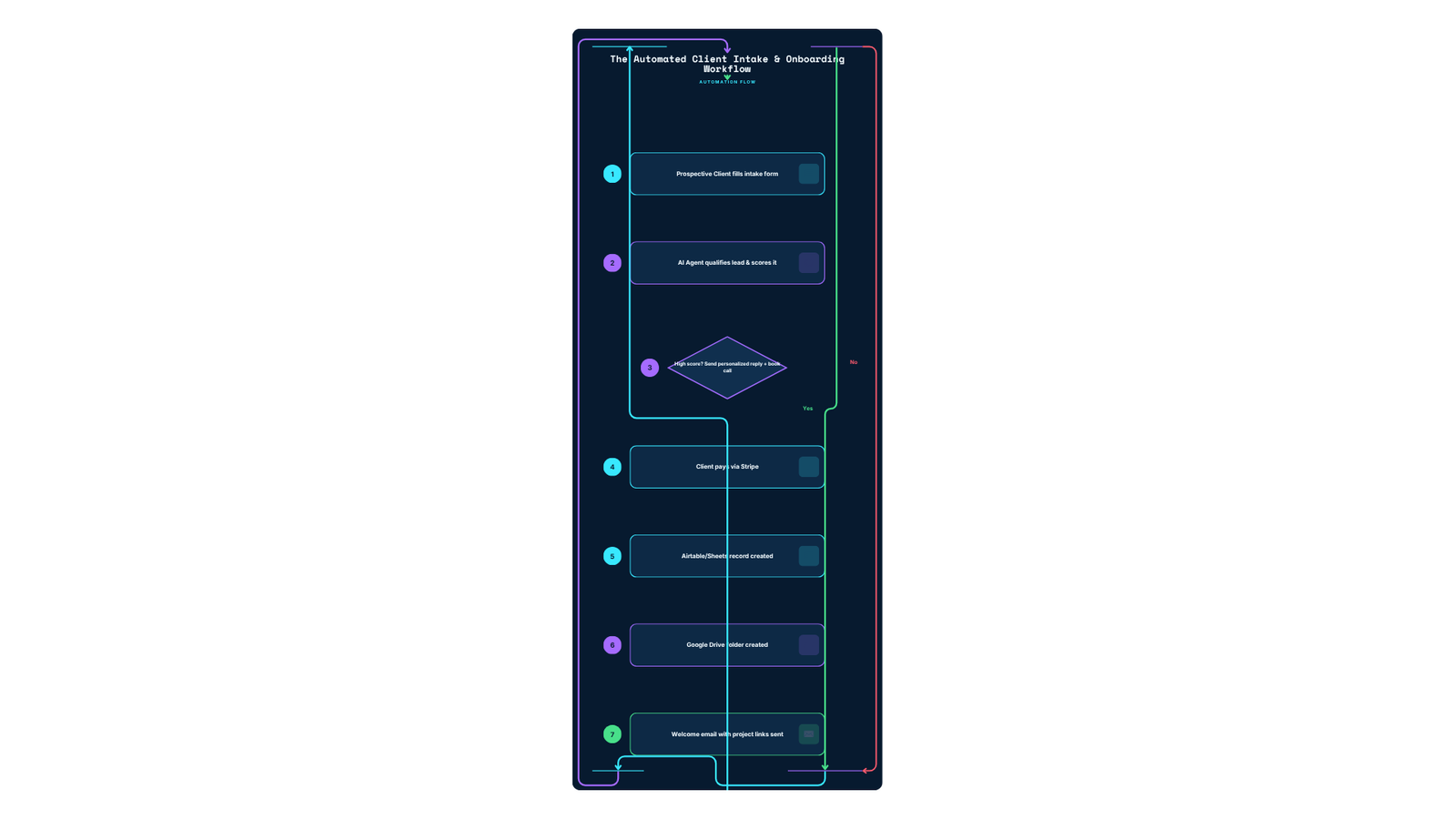
Step 1: The Lead Capture Form
Before a client can pay, they need to find you and tell you what they need. Use Tally.so (free) or Typeform for your intake form. Collect:
- Project type
- Budget range
- Timeline
- How they found you
- A brief project description
This form is where lead capturing starts. Connect it directly to Make or n8n via webhook — every new form submission instantly wakes up your automations workflow.
Step 2: AI-Powered Lead Qualification
Route the form response to an OpenAI node. Use a system prompt like:
“You are a lead qualifier for a freelance design studio. Read this intake form response and output: (1) a lead score from 1-10, (2) the detected budget range, (3) whether this is urgent, (4) a 2-sentence personalized reply draft. Be direct and concise.”
Your ai agent instantly reads every prospective client’s submission and scores it. High-score leads (8+) trigger an automated client follow-up email within 60 seconds of submission — dramatically improving response times. Low-score leads get a polite “not the right fit” template.
This is qualifying leads at scale without spending any time on it yourself.
Step 3: Payment Trigger
Once the client is ready to proceed, Stripe sends a payment_intent.succeeded webhook to Make or n8n. This is the moment the entire client onboarding chain kicks off in real time.
Step 4: Automated Client Record Creation
Make or n8n creates a new row in Airtable or Google Sheets with:
- Client name and email
- Service purchased
- Payment amount
- Project status: “Needs Setup”
- Date and time of purchase
No manual data entry. No copy-pasting. The automated client record is there before you even see the payment notification.
Step 5: Google Drive Project Folder
The workflow automatically creates a new folder in your Google Drive named [ClientName] - [ProjectType] - [Date] and populates it with template documents (contract, project brief, deliverables tracker).
Step 6: Welcome Email
A personalized welcome email goes out immediately, containing:
- A thank-you message referencing their specific project
- The link to their new Google Drive project folder
- Next steps (discovery call link, questionnaire, etc.)
The client experience is premium and instant. They feel like they hired a professional agency, not a solo freelancer.
Why Freelancers in Law Firms and Professional Services Need This Most
While this guide is written for freelancers, the intake automation principles apply even more powerfully to professional services like law firms and consulting practices. In family law for example, a prospective client inquiry often comes in at 10pm, emotionally charged and needing a response. An automated intake system that:
- Captures the initial inquiry via a secure form
- Sends an instant “We received your message, here’s what happens next” reply (improving response times)
- Scores the case type and urgency
- Creates a secure client record
- Books an initial consultation
…can transform the client experience and capture more cases without adding a single team member.
The same automation platforms (Make/n8n + Airtable + Stripe) power this for both a solo graphic designer and a small law firm’s intake process. The workflow is identical — only the content of the forms and emails changes.
Monitoring Your Automation in Real Time
Once your freelance automation workflow is live, you need to know when something breaks. Both Make and n8n give you real time execution monitoring:
- Make.com: The “History” tab shows every scenario run with pass/fail status and the exact data at each step.
- n8n: The “Executions” panel shows a node-by-node timeline with input/output data. If your AI node returns an error, you’ll see exactly what prompt it received and what went wrong.
Set up error alerts: In both platforms, you can add an error handler that sends you a Slack or email notification when a workflow fails. This means you’re never in the dark about a client whose onboarding automation broke silently.
How Much Does This Actually Cost?
Here’s a realistic monthly cost breakdown for the complete automate freelance business stack:
| Tool | Plan | Monthly Cost |
|---|---|---|
| Stripe | Per-transaction fee | $0 fixed (2.9% + $0.30/tx) |
| Airtable | Free tier (up to 1,000 records) | $0 |
| Google Sheets | Google Workspace (optional) | $0–$6 |
| Make.com | Core plan | $9 |
| OR n8n Cloud | Starter plan | $20 |
| OR n8n Self-hosted | DigitalOcean Droplet | ~$5 |
| OpenAI API | Pay-per-use (AI layer) | $1–$5 |
| Tally.so | Free intake forms | $0 |
| Total (Make stack) | ~$10–$15/month | |
| Total (n8n self-hosted) | ~$6–$10/month |
For a freelancer saving time worth even $30/week in recovered admin hours, this stack pays for itself in the first two days of every month.
What to Do Next
Pick your checkout tool (Stripe or Gumroad). Pick your engine (Make or n8n). Make free accounts for both and just try connecting them together.
Start with the simplest possible workflow: Stripe payment → create a Google Sheets row → send a Gmail welcome email. That alone saves 15–20 minutes per client. Then layer in the ai powered qualification and personalization once the basics are working.
Stop doing manual data entry. Build the system once, and let it run in the background while you focus on the actual work.
Operant Solo is an independent publication. We recommend software based strictly on its utility for solo business owners. Some links in this guide, including those for Make, n8n, OpenAI, and Airtable, are affiliate links. If you sign up through them, we may earn a commission at no additional cost to you.
Frequently Asked Questions
What’s the cheapest way to automate a freelance business?
Stripe (free), Airtable’s free tier, and Make.com’s ~$9/month plan cover the entire client intake automation pipeline for most freelancers. If you’re comfortable self-hosting, swapping Make for n8n on a $5/month server brings the total to under $10/month. Google Sheets (free) instead of Airtable brings it down further. Total: as low as $6/month for the full stack.
Do I need to know how to code to automate my freelance business?
No. Make.com and Airtable are built for no-code use — you connect them with drag and drop rather than writing scripts. n8n has a steeper learning curve but still doesn’t require coding for standard freelance automation workflows. For the ai powered layer (OpenAI API), you write a text prompt — no programming needed.
What should I automate first as a freelancer?
Client intake and onboarding — the moment a client pays, automatically creating their project record and sending a welcome email. It’s the highest-frequency admin task and the easiest to automate. This alone saves most freelancers 2–3 hours per week. Lead capturing via an intake form connected to Make or n8n is the natural second step.
Make vs n8n — which should I use for freelancers?
Start with Make if you want the fastest setup and a friendly drag and drop interface. Switch to n8n when you need unlimited executions, advanced ai agent capabilities (like the Wait node for human-in-the-loop), or complete data privacy via self-hosting. Both are excellent automation platforms — the choice depends on where you are in your automation journey.
How can AI improve my freelance client intake?
An ai agent connected to your intake form can automatically: score leads (1–10) based on budget and fit, draft personalized initial replies within seconds (improving response times), flag high-value opportunities for your personal attention, and summarize the project brief into your Google Sheets tracker. This is qualifying leads at scale — without spending any time on it yourself.
Can this work for professional services like law firms?
Yes. The same intake automation stack works equally well for law firms, consultants, accountants, and other professional services. The client experience improvement is even more pronounced in high-stakes contexts like family law, where fast, professional response times after an initial inquiry directly impact case acquisition. The forms and email copy change; the automation architecture is identical.
How do I know if my automation is working?
Both Make and n8n provide real time execution logs showing every workflow run with pass/fail status and data at each step. Set up an error handler node that sends you a Slack or email alert when a workflow fails. This way you always know if the automated client onboarding chain is healthy, without manually checking the platform every day.
Related Reading:
- How to Automate Client Onboarding (Stripe, Drive & n8n) →
- AI Lead Enrichment: How to Automate Client Research →
- n8n Human in the Loop: How to Safely Control AI Agents →
- n8n Review 2026: Is Self-Hosting Actually Worth the Effort? →
- AI Agent Workflows for Solopreneurs: What’s Safe to Automate →
n8n
Best for: technical automation workflows
Consider n8n when your workflow needs custom logic or control over deployment. Self-hosting also requires time for updates, backups, and monitoring.
Operant Solo may earn a commission if you purchase through this link, at no extra cost to you.
Make
Best for: visual, branching automation workflows
Consider Make when you prefer building workflows visually. Check how your scenario’s actions and repeated runs affect usage before choosing a plan.
Operant Solo may earn a commission if you purchase through this link, at no extra cost to you.
Pingback: AI Lead Enrichment: How to Automate Client Research
Pingback: Claude for Small Business vs. Building Your Own Automation
Pingback: How to Automate Client Onboarding (Stripe, Drive & n8n)
Pingback: No API Integration: 3 Ways MSPs Can Solve It in 2026
Pingback: White Label Voice AI Platforms for Agencies: 2026 Buyer's Guide