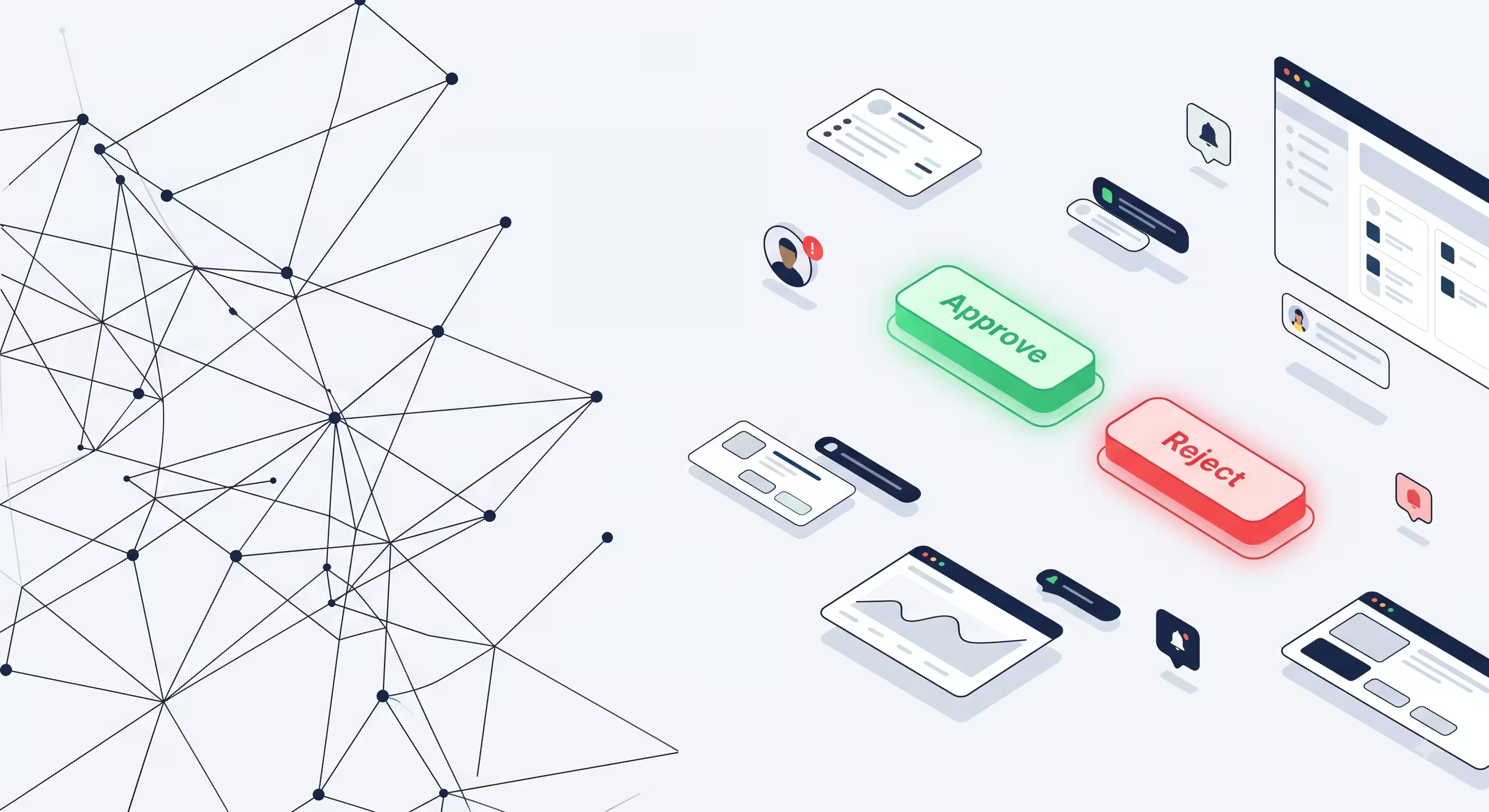
Most automation projects don’t fail because the software is too difficult. They fail because the business owner is terrified of what happens when the AI makes a mistake.
Disclosure: Operant Solo is reader-supported. We may earn an affiliate commission when you purchase through links on this page, at no additional cost to you. Recommendations are based on independent testing and evaluation.
If you use AI to analyze spreadsheet data, a hallucination is annoying. But if you use an AI agent to draft and send emails to your highest-paying clients, a hallucination can cost you your reputation.
You do not have to choose between doing everything manually or letting an AI run wild. The middle ground is called Human-in-the-Loop (HITL).
Checkout our dedicated n8n review here
Here is exactly how to use n8n to build a workflow that lets AI do 99% of the heavy lifting, but forces it to pause and wait for your permission before taking any critical action.
Quick Answer: A Human-in-the-Loop (HITL) workflow can use n8n’s native Human review step for AI Agent tool calls, or a Wait node for a general workflow approval. The example below uses the Wait node. The n8n workflow generates an AI response, sends it to you via Slack or Email with “Approve” and “Reject” buttons, and pauses. The workflow completely stops until you click a button, ensuring no data is sent without human oversight.
Why n8n Is the “Holy Grail of Automation” for AI Workflows
Before we dive into the build, let’s talk about why n8n specifically — not Zapier, not Make — is the best platform for human in the loop workflows.
The n8n community is full of builders who’ve had the same realization. Here’s what actual users say:
“When I realized what we were building — an AI agent that could draft client proposals, check pricing, and wait for my approval before sending — I knew this would’ve taken me 3 days in any other platform. In n8n, it took 2 hours.”
— Solo consultant, n8n Community Forum
“n8n is the holy grail of automation for anyone who needs to integrate AI into real business processes. The ability to quickly validate and implement a human approval step is what separates it from every other tool.”
— Agency owner, n8n Discord
What makes n8n uniquely suited for AI workflows with human oversight:
- Self-hosted = full control. Your client data never leaves your server. No third-party AI provider sees your business emails unless you explicitly route them there.
- The Wait Node. No other automation workflow platform has a native node that pauses execution, stores state in a database, and resumes on webhook. Zapier’s “Delay” is not the same thing — it just waits X minutes and then proceeds blindly.
- Unlimited executions. On the self-hosted plan, you can run as many automation workflows as your server can handle. No per-execution fees that make human in the loop patterns prohibitively expensive.
The Problem with “Fully Autonomous” Workflows
When you first start building AI agents, the temptation is to automate everything.
Imagine you run a tech reselling business. A customer emails you asking for the bulk price of 50 digital software subscriptions. You build an automation that reads the email, checks your pricing database, drafts a quote, and replies.
If it works, it’s magical. If the AI hallucinates a zero and quotes them $50 instead of $500, you are in a massive bind.
For solopreneurs and freelancers, reputation is everything. You cannot afford an unhinged chatbot response. You need the time-saving power of the AI draft, combined with the safety of human judgment.
How n8n’s Integration Ecosystem Powers This
One of the reasons you can build complex workflows in n8n that other platforms can’t match is n8n’s integration ecosystem. As of 2026, n8n has 400+ native integrations and the ability to connect to any API via the HTTP Request node.
For a human in the loop workflow specifically, you’ll use:
| Node | Purpose |
|---|---|
| Gmail / Email Trigger | Catches incoming emails in real time |
| OpenAI / Anthropic Node | Sends email body to your chosen AI model for drafting |
| Slack Node | Sends the draft + interactive Approve/Reject buttons via n8n Slack approval |
| Wait Node | Pauses the entire n8n workflow until webhook callback |
| If / Switch Node | Routes to “Send” or “Stop” based on whether the human approves |
| Code Node | Optional: add custom code nodes for data transformation, formatting, or validation |
This is the power of n8n’s integration architecture: every node is a building block, and you can snap them together in any order to build complex workflows that would require custom development in any other platform.
Current n8n option: review AI Agent tool calls
If an AI Agent can send an email, update a record, or delete data, attach n8n’s Human review step to that specific tool. The agent proposes the call, the workflow pauses, and a reviewer sees the tool name and proposed parameters. Approval executes the tool; denial cancels it. Keep read-only tools ungated when appropriate.
In the AI Agent’s Tools panel, choose a review channel such as n8n Chat or Slack, then connect only the sensitive tools to the Human review step. Put the proposed action in the review message using {{ $tool.name }} and {{ JSON.stringify($tool.parameters, null, 2) }}. Tell the agent in its system instructions which calls need approval and how to respond when a request is denied.
See n8n’s Human-in-the-loop for tools documentation for the current interface and supported channels. The Wait-node tutorial below remains useful when the approval concerns a broader workflow step rather than a selected AI Agent tool call.
Alternative: The Wait node for general workflow approval
In n8n, workflows normally run from left to right in a fraction of a second.
To create a Human-in-the-Loop system, we use a specific node called the Wait node. When a workflow hits this node, it goes to sleep. It stores all the data it has collected so far in your server’s database and stops executing.
It will only wake up when it receives a specific signal — usually a Webhook.
(Note: A webhook is simply a unique web URL that listens for data. When a service like Slack sends a message to that URL, the webhook catches it and triggers an action).
This is fundamentally different from a “Delay” node in other platforms. The Wait node doesn’t just count down a timer — it completely suspends the workflow execution and frees up server resources. The workflow automates the waiting process itself, and your server isn’t holding anything in memory while you take your time reviewing.
Step-by-Step: Building a Slack Approval System
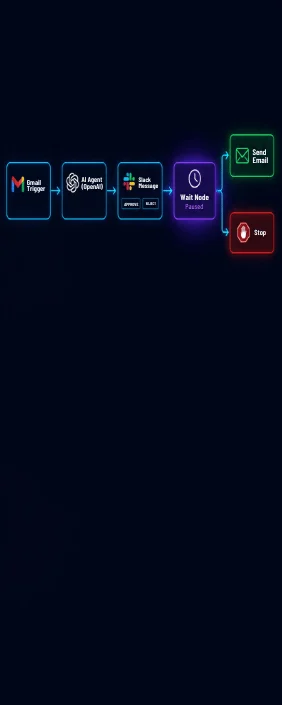
The most practical way to handle n8n Slack approval is through interactive Slack messages. In this n8n workflow, an email arrives, the AI drafts a response, and it sends you a private Slack message with the draft. You click “Approve” to send it, or “Reject” to kill the workflow.
Step 1: The Trigger and AI Draft
- Add an Email Read or Gmail Trigger node to catch incoming client requests.
- Route the email body into an Advanced AI Node (like OpenAI or Anthropic). This is where you integrate AI into the workflow — the node sends the email text to your chosen AI model and receives a drafted response.
- Prompt the AI to read the email and generate a professional response draft.
Pro tip for this n8n usage guide: In the AI node’s system prompt, be specific about tone and constraints. Instead of “write a professional reply,” try: “You are a senior consultant at [Your Company]. Draft a reply to this client email. Be warm but professional. Never commit to pricing or timelines — those require my explicit approval. If the email mentions budget, flag it in the draft.”
This kind of precise prompting is what separates a dangerous autonomous agent from a useful AI workflow that respects your decision-making authority.
Step 2: Sending the Slack Approval Request
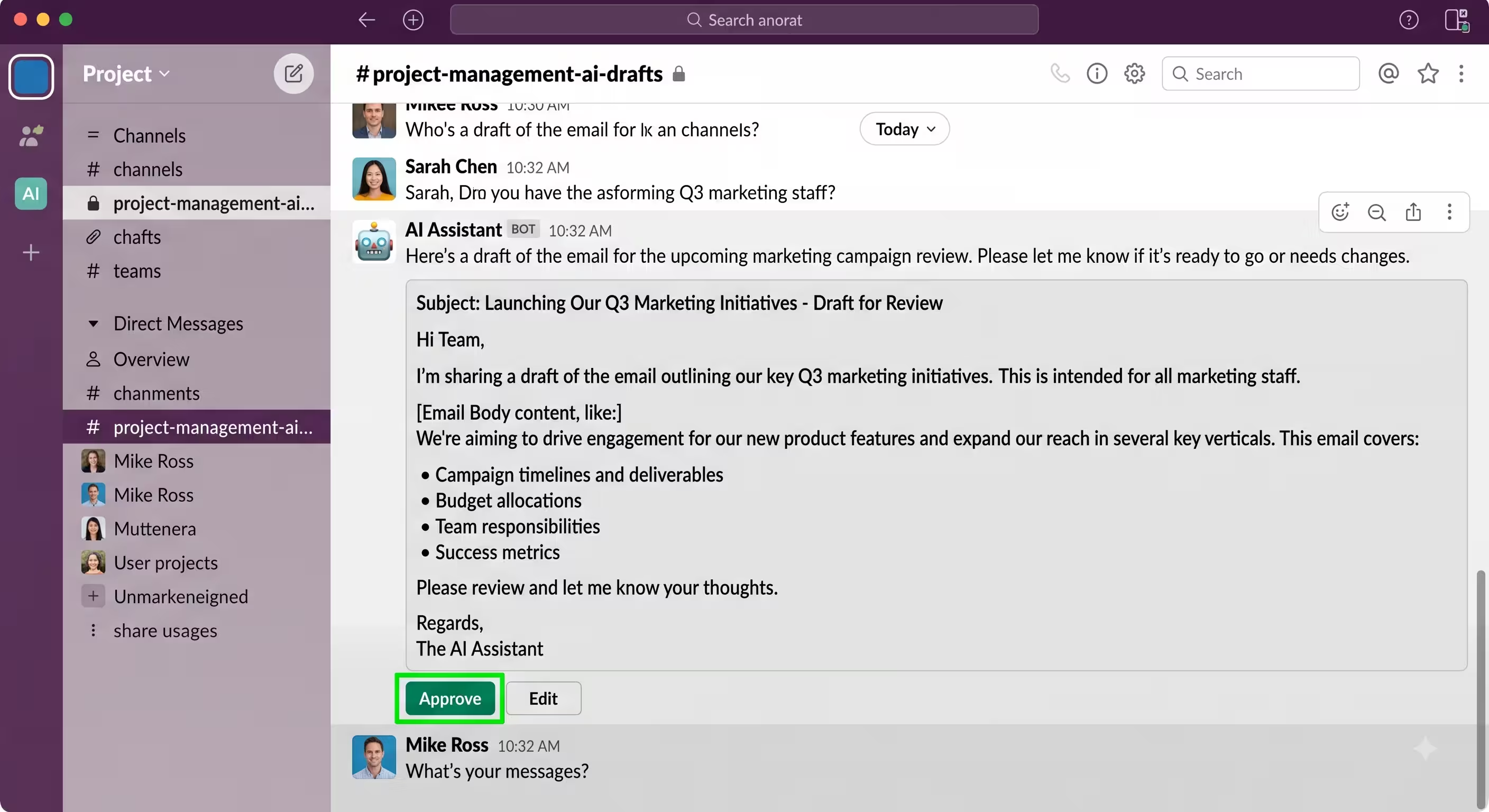
We don’t want to just send a text message to Slack; we want interactive buttons. This is the core of the n8n Slack approval pattern.
- Add a Slack Node and set the action to “Send a Message.”
- In the message text, include the original customer email and the AI’s drafted response.
- Under the Slack node’s advanced options, add Blocks (Slack’s term for interactive UI elements). Create two buttons: a green “Approve” button and a red “Reject” button.
- Attach a specific Webhook URL (which we will generate in the next step) to those buttons.
Formatting tip: Structure your Slack message like this for maximum readability:
📨 *New Email from:* {{$json.from}}
📝 *Subject:* {{$json.subject}}
---
🤖 *AI Draft Response:*
{{$json.ai_draft}}
---
⚠️ *Review required before sending*
This gives you all the context you need to make a quick decision without opening your email client. The entire review happens in Slack, in real time.
Step 3: Configuring the Wait Node
This is the core of the system — the moment where your workflow automates the pause-and-wait pattern that makes human in the loop safe.
- Add a Wait Node directly after the Slack node.
- Set the “Resume” condition to On Webhook Call.
- n8n will generate a unique Webhook URL for this specific node. Copy it.
- Paste this URL into the Slack button configuration from Step 2.
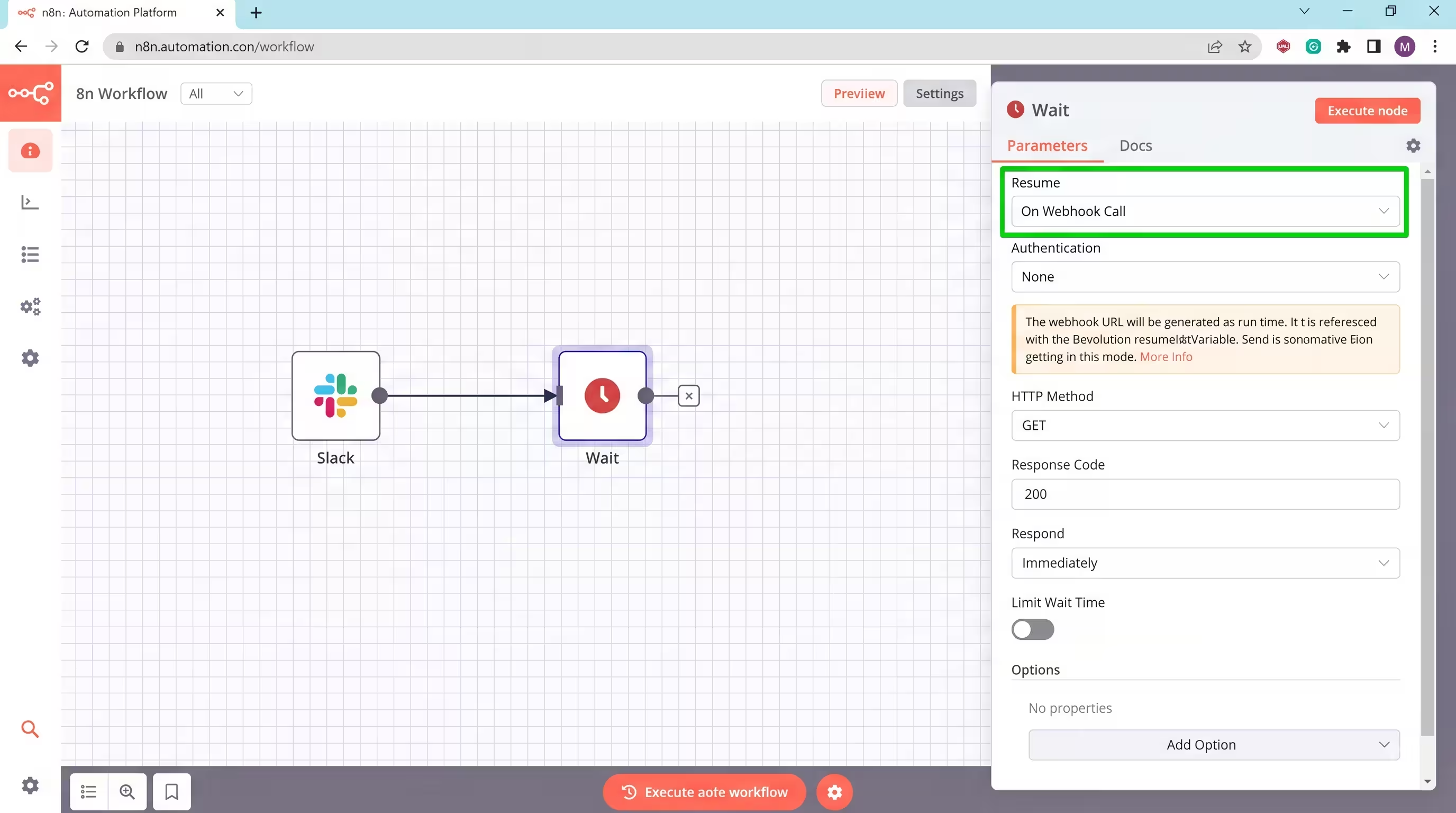
Now, when the workflow runs, it will send the message to Slack and instantly go to sleep. No server resources consumed. No timeout ticking. It will wait for as long as it takes for you to respond.
Step 4: The Routing Logic
When you click “Approve” in Slack, Slack sends a payload of data to your Wait node’s URL. The Wait node wakes up and pushes that data to the next step.
- Add an If Node (or Switch node) after the Wait node.
- Configure it to check the data Slack just sent.
- If the data says “Approve”, route the workflow to a Gmail “Send Email” node containing the AI draft.
- If the data says “Reject”, route the workflow to a “Stop and Error” node, ending the process.
That’s it. The human approves or rejects, and the n8n workflow responds accordingly. No email is ever sent without your explicit click.
Advanced: Using Custom Code Nodes for Validation
For builders who want even more control, n8n’s code node opens up a world of possibilities. You can use custom code nodes as code tools to add validation logic before the AI draft even reaches Slack.
Here’s a practical example — a code node that flags high-risk emails:
// Code Node: Risk Assessment
const emailBody = $input.first().json.body.toLowerCase();
const riskKeywords = ['refund', 'cancel', 'legal', 'lawyer', 'complaint', 'urgent'];
const riskScore = riskKeywords.filter(keyword =>
  emailBody.includes(keyword)
).length;
return [{
  json: {
    ...$input.first().json,
    risk_level: riskScore >= 2 ? 'HIGH' : riskScore === 1 ? 'MEDIUM' : 'LOW',
    flagged_keywords: riskKeywords.filter(k => emailBody.includes(k)),
    requires_personal_reply: riskScore >= 2
  }
}];
With custom code nodes, you can:
- Flag high-risk emails that should skip the AI draft entirely and go straight to your inbox
- Validate AI output before it reaches Slack (check for hallucinated pricing, forbidden phrases, etc.)
- Enrich the Slack message with CRM data, client history, or account value
- Log every decision to a database for compliance and auditing
This is what makes n8n a real platform for serious automation workflows, not just a toy for connecting two apps. You can quickly validate and implement custom business logic using JavaScript or Python directly inside your workflow.
Integrating AI Models Beyond OpenAI
This n8n usage guide wouldn’t be complete without covering the full range of AI models you can integrate AI with in n8n. The platform doesn’t lock you into a single provider.
| AI Model | Best For | Node in n8n |
|---|---|---|
| GPT-5.5 (OpenAI) | General drafting, client communication | OpenAI Node / AI Agent |
| Claude Sonnet 4.5 | Long-form analysis, nuanced tone | Anthropic Node / HTTP Request |
| GPT-4.1 Mini | Simple classification, email triage | OpenAI Node (cheaper tier) |
| Gemini 3.1 Flash | Fast processing, data extraction | HTTP Request to Gemini API |
| Local LLMs (Ollama) | Privacy-critical data, zero API cost | Ollama Node (self-hosted) |
The key insight for AI workflows: you don’t need the most expensive model for every task. Use GPT-4.1 Mini for email classification (is this urgent? → yes/no), and only route to GPT-5.5 or Claude for the actual draft generation. This can cut your API costs by 60-70% while maintaining the same quality on the output the client actually sees.
For a deep dive on this cost optimization, check our Multi-Model AI Agent n8n: HydraFusion Patterns guide.
Real-Time Monitoring and Debugging
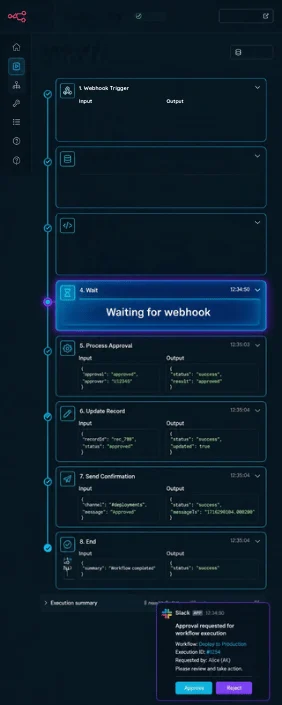
One of the most underappreciated features in this n8n usage guide is the real time execution monitoring. When you’re building human in the loop workflows, you need to see exactly what’s happening at every step.
n8n gives you:
- Execution logs: Every run is logged with full input/output data for every node. If the AI drafts something weird, you can trace back to see exactly what prompt it received.
- Pinned data: You can pin test data to any node, letting you quickly validate and implement changes without waiting for a real email to arrive.
- Error handling nodes: Add a dedicated error branch that catches AI failures (timeout, rate limit, hallucination detection) and routes them to a separate Slack channel.
- Execution timeline: See how long each node takes. If your AI draft is taking 15 seconds, you’ll know to optimize the prompt or switch to a faster model.
Real-World Business Use Cases
This exact architecture scales across almost every solo business model. Here’s how to use n8n for each:
For Consultants (Proposals)
AI analyzes a discovery call transcript and drafts a $10,000 project proposal. It sends the Google Doc link to your Slack. You approve it, and n8n automatically emails it to the client via DocuSign. The workflow automates everything except the final approval — which takes you 30 seconds.
For Freelance Writers (Content)
AI researches a topic and drafts an outline in Notion. The workflow pauses. You review the Notion page, click a checkbox, and the workflow resumes, telling the AI to write the full draft based on your approved outline. You can build complex workflows that chain multiple AI calls together, each gated by approval.
For Agencies (Lead Qualification)
A lead fills out a form. AI checks their company size and revenue using Clearbit data. If they are a massive enterprise, n8n pauses and pings you on Slack to ask if you want to take this lead personally or route it to the standard calendar. You can even use a code node to score leads automatically and only pause for high-value ones.
For E-commerce (Customer Support)
A customer submits a complaint. The AI drafts a response referencing their order history, suggests a resolution (refund, replacement, discount code), and sends it to Slack for approval. The human approves the response, and the n8n workflow sends it via email and updates the helpdesk ticket simultaneously.
For Real Estate (Follow-Ups)
A property inquiry comes in via WhatsApp. The AI extracts the property details, checks availability in your database, drafts a personalized response in Hinglish (for the Indian market), and waits for your approval before replying. This is where n8n’s integration with WhatsApp Business API makes it uniquely powerful for the Indian SMB market.
Limitations to Watch Out For
While Human-in-the-Loop is powerful, it has a few strict technical requirements. This is the part of the n8n usage guide most tutorials skip:
- PostgreSQL is Mandatory: If you are self-hosting n8n, you must use a PostgreSQL database. The default SQLite database struggles to store sleeping workflows reliably. If your server restarts while a workflow is sleeping in SQLite, you will lose the workflow completely.
- Timeout Limits: Do not let workflows sleep forever. Configure the Wait node to automatically expire after 48 hours. If you haven’t approved the email in two days, the workflow should automatically route to a fail-state so it doesn’t clog your server’s memory.
- Public URLs: For Slack to talk to your n8n Wait node, your n8n instance must be exposed to the public internet with a valid HTTPS domain. Use a reverse proxy like Nginx or Caddy with a free Let’s Encrypt SSL certificate.
- Slack App Permissions: Your Slack app needs
chat:write,commands, andinteractivityenabled. Many first-time builders miss the interactivity URL — you need to set this to your n8n’s webhook base URL in the Slack app settings. - Webhook Security: Always validate incoming webhooks with Slack’s signing secret. You can use a code node to verify the
X-Slack-Signatureheader, preventing unauthorized users from approving workflows. The n8n community has shared ready-to-use verification code for this exact pattern.
Scaling Beyond Slack: Alternative Approval Channels
While n8n Slack approval is the most popular pattern, n8n supports several other approval methods. This n8n usage guide covers all of them:
| Method | Best For | How It Works |
|---|---|---|
| Slack Buttons | Teams already in Slack | Interactive message with webhook callback |
| Email with Links | Non-technical approvers | Email with unique Approve/Reject URLs |
| n8n Form Trigger | Multi-field approval (edit before send) | Custom form with text fields, dropdowns |
| Telegram Bot | Mobile-first workflows | Inline keyboard buttons in Telegram |
| Microsoft Teams | Enterprise/corporate environments | Adaptive Cards with action buttons |
The email-based method is especially useful for AI agents that need approval from someone who doesn’t use Slack — like a client or an external partner. The workflow automates the entire process: send email with two links → Wait node pauses → clicking either link resumes the workflow.
Test your approval gate
Use these fictional tool calls to check that a reviewer sees proposed parameters and that denial prevents execution. This file is test data, not an n8n workflow import.
Want more practical guides? Subscribe to the Operant Solo newsletter if you like. Downloads are free without signing up.
Next Steps
Adding a Wait node completely changes how you view automation. You are no longer building machines that run blindly in the background; you are building digital assistants that prepare the work, bring it to your desk, and wait for your signature.
Now that you know how to use n8n to safely control AI outputs, you can start building much more aggressive AI workflows. The n8n community is building incredible things — from multi-agent systems that use different AI models for different tasks, to full client onboarding pipelines where the human approves each step before the next one fires.
The pattern is always the same: let the AI agents do the heavy lifting, use custom code nodes and code tools for validation, and gate every irreversible action with a human checkpoint.
That’s not just an n8n usage guide — it’s the blueprint for building automation workflows you can actually trust with your business.
Frequently Asked Questions
What is n8n human in the loop?
n8n human in the loop is a workflow pattern where the AI agent drafts output (email, proposal, social post), sends it to a human reviewer via Slack, email, or Telegram, and pauses using the Wait node. The workflow automates everything except the final decision, which requires the human approves action before proceeding.
How do I set up n8n Slack approval?
To set up n8n Slack approval: (1) Add a Slack node that sends an interactive message with Approve/Reject buttons, (2) Add a Wait node set to “Resume on Webhook Call,” (3) Copy the Wait node’s webhook URL into the Slack button config, (4) Add an If node to route based on the button clicked. Full step-by-step above.
Can I use custom code nodes in n8n for validation?
Yes. Custom code nodes in n8n support JavaScript and Python. You can use them as code tools to validate AI output, flag risky content, enrich data with CRM lookups, or transform data between nodes. They’re one of the key features that let you build complex workflows that match your exact business rules.
What AI models work with n8n?
n8n supports all major AI models: OpenAI (GPT-5.5, GPT-4.1), Anthropic (Claude 4.5), Google (Gemini 3.1), and self-hosted models via Ollama. You can integrate AI from any provider using the HTTP Request node — anything with an API works with n8n’s integration ecosystem.
Is n8n better than Zapier for human-in-the-loop?
For human in the loop specifically, yes. Zapier has no equivalent to n8n’s Wait node — it can delay but not truly pause and wait for human input. n8n also lets you self-host (keeping sensitive data private), run unlimited executions, and use custom code nodes for validation. For a full comparison, read our n8n vs Make 2026 guide.
How does the n8n community help with AI workflows?
The n8n community (community.n8n.io and Discord) is one of the most active automation communities. Members share workflow templates, debug issues in real time, and contribute to n8n’s open-source codebase. For AI workflow patterns specifically, the community has published dozens of ready-to-import templates for Slack approval, email triage, and multi-agent systems.
Related Reading:
- AI Agent Workflows for Solopreneurs: What’s Safe to Automate in 2026 →
- How to Use OpenAI Structured Outputs in n8n (Zero JSON Errors) →
- n8n Review 2026: Is Self-Hosting Actually Worth the Effort? →
- Multi-Model AI Agent n8n: Build HydraFusion Patterns (Cut Costs 67%) →
- How to Build AI Agents in 2026: The Ultimate Solopreneur’s Guide →
- Zapier AI Agents Review (2026): The Hidden Costs & Best Alternatives →
n8n
Best for: technical automation workflows
Consider n8n when your workflow needs custom logic or control over deployment. Self-hosting also requires time for updates, backups, and monitoring.
Operant Solo may earn a commission if you purchase through this link, at no extra cost to you.
Pingback: How to Build an AI Email Parser (And Stop Manual Data Entry)
Pingback: How to Automate Client Onboarding (Stripe, Drive & n8n)
Pingback: How to Build an AI Voice Receptionist for Your Solo Business
Pingback: Claude 3.5 vs GPT 4o: Which API is Best for Automations?
Pingback: n8n Security in 2026: What Every Self-Hoster Needs to Know
Pingback: AI Agent Wallets: Should You Let AI Spend Money Autonomously?
Pingback: n8n MCP Integration Guide (2026): Server Triggers & AI Agents
Pingback: AI Agent Workflows for Solopreneurs: What's Safe to Automate in 2026
Pingback: How to Use OpenAI Structured Outputs in n8n (No JSON Errors)
Pingback: Multi-Model AI Agent n8n: Build HydraFusion Patterns (Cut Costs 67%)
Pingback: How to Automate Freelance Business in 2026
Pingback: AI Lead Enrichment: Automate Client Research with n8n (2026)
Pingback: Zapier AI Agents Review 2026: Hidden Costs & Best Alternatives
Pingback: n8n SAP Investment: What the $5.2B Valuation Means for Solopreneurs
Pingback: n8n Statistics 2026: 70+ Data Points on Users, Revenue, Funding & AI Automation Growth - Operant Solo
Pingback: Automate Website Without API: Build AI Browser Agents
Pingback: GPT-6 Astra for Automation: What Changed and Should You Upgrade?
Pingback: Cursor AI vs Make: Should You Code Automations in 2026?